


 Menu
MenuMenu


Get Sales Advice from Mon - Fri 9am - 5:00pm:
020 3337 8950LAST UPDATED: April 29, 2026
What Is the Best Computer for Video Editing in the UK? (Specs, Setup & Buying Guide)
Finding the best computer for video editing in the UK is not just about buying the most expensive machine you can afford. The right choice depends on what you edit, which software you use, and how much performance you need for your workflow.
For some people, a well-balanced video-editing PC is enough for 1080p work and lighter 4K projects. For others, a more powerful video-editing computer makes far more sense, especially if you work with effects, colour grading, multicam timelines, or larger files daily.
This guide breaks everything down clearly. It looks at the hardware that matters most and the difference between laptop and desktop setups. It also guides the users on how to choose the best desktop for video editing or a laptop that won't stop them from getting things done.
What Actually Makes a Computer Good for Video Editing?
A strong editing setup is not just about raw speed. The right machine needs to handle playback, effects, exports, and file management without slowing your workflow down.
That is why the best computer for video editing depends on more than one spec. It comes down to how the hardware works together and which editing software you rely on most.
Why Video Editing Pushes Hardware Harder Than Everyday Tasks
Video editing is demanding because the computer performs several tasks at once. It has to decode footage, play back timelines smoothly, manage effects, render previews, and export finished files. The heavier the project gets, the more pressure it puts on the CPU, GPU, memory, and storage. That is why a normal office PC can feel fine for daily use but struggle badly as a video-editing PC.
The Components That Matter Most
The most important parts are the processor, graphics card, memory, and storage. A strong CPU helps with editing responsiveness and exports. The GPU matters more than many buyers expect, especially for effects, colour work, and hardware acceleration in modern editing apps. Fast storage is just as important, because large footage files and project caches can slow everything down if the drive is not quick enough. This is why the best video editing desktop is usually built around balanced PC components, not just one expensive part.
Why Software Choice Changes the Hardware You Need
Your software changes what “best” really means. Premiere Pro runs on both Windows and macOS, and Adobe recommends modern multi-core CPUs, enough memory, and a supported GPU for smoother workflows. DaVinci Resolve also runs on Windows and macOS, but it leans heavily on GPU performance in many tasks. Final Cut Pro is different because it is exclusive to macOS and optimised for Apple hardware. In practice, the best video editing computer is always the one that matches your editing software as well as your footage type.
Essential Specs for Video Editing in 2026
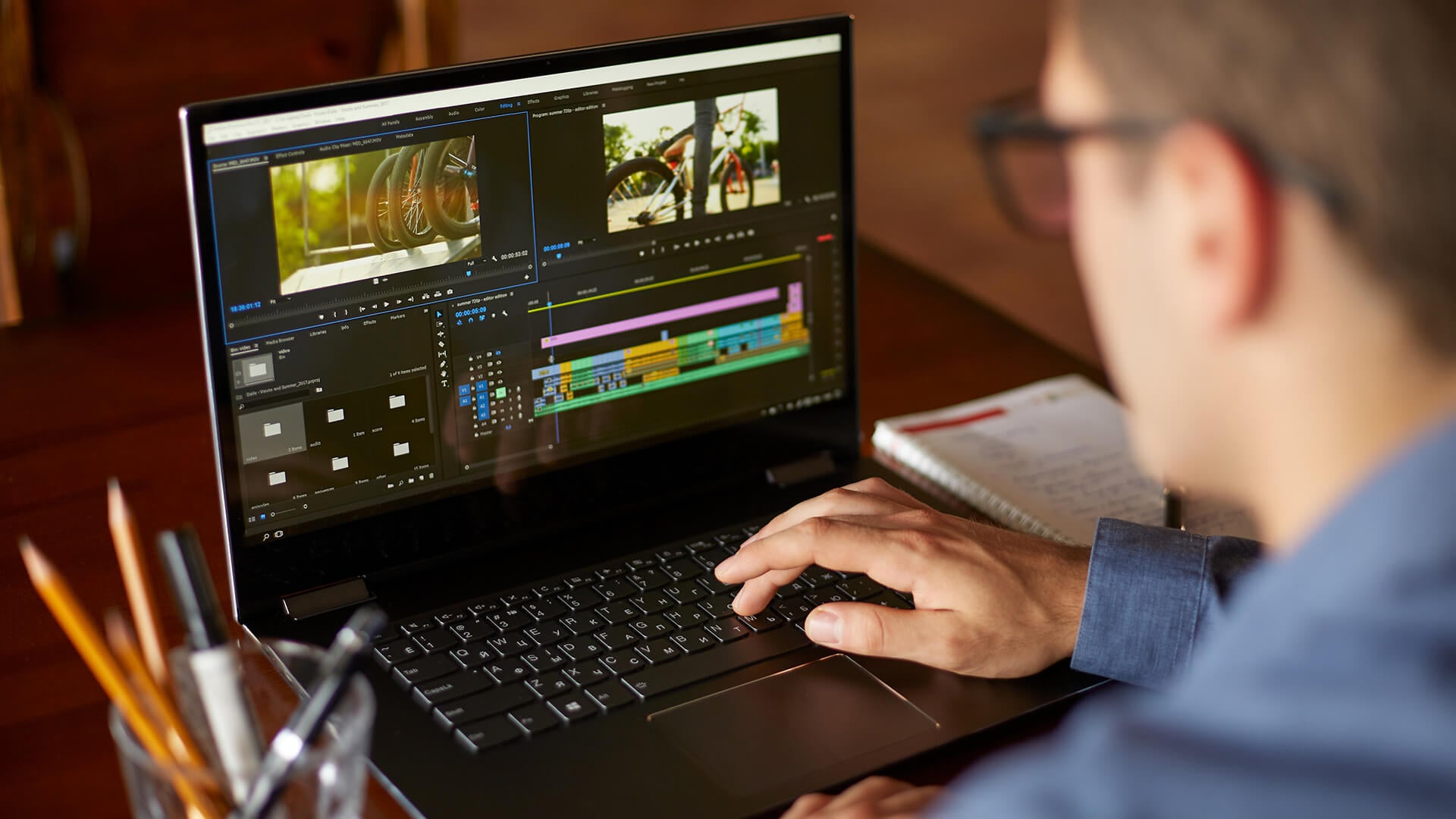
Once you know what editing actually asks from a machine, the next step is choosing the right hardware level. The best PC for video editing is not always the most expensive one. It is the one that matches your footage, your software, and the level of work you do most often.
Best CPU for Video Editing Workflows
The processor matters a lot because editing software relies on it for playback, timeline responsiveness, encoding, and exports. Adobe's current guidance says Premiere Pro benefits from modern multi-core CPUs, while Blackmagic also lists a capable multi-core processor as part of a proper Resolve system.
In practical terms, that means the best computer for video editing should not start with an entry-level chip if you work with 4K footage or heavier effects. For light 1080p work, a solid modern mid-range CPU is enough. For heavier 4K or 8K work, you want a stronger multi-core platform that can hold up during longer renders and more complex timelines.
How Much RAM Do You Really Need?
Memory is one component that can easily bottleneck a video editing computer. Final Cut Pro still lists 8GB as a minimum and 16GB as recommended, but that is only a starting point. Premiere Pro's minimum specification is aimed at HD editing, not demanding 4K workflows.
For real buying advice, 16GB is fine for lighter 1080p work, 32GB is the better baseline for serious 4K editing, and 64GB or more starts to make sense once you move into multicam, heavy effects, or 8K footage. That is why the best PC for video editing usually needs more RAM than a general home or office PC.
GPU Requirements for Rendering and Effects
The GPU matters far more than it used to. Adobe now has dedicated GPU guidance for playback, rendering, and export, while DaVinci Resolve Studio is explicitly built around stronger GPU acceleration and can benefit even more from powerful graphics hardware.
That means a modern video editing PC needs a powerful graphics card along with a good processor. If you edit in Resolve, use noise reduction, grade heavily, or work with effects often, the graphics card becomes even more important. This is one reason an affordable gaming PC can also be used as an editing machine, as long as the rest of the specifications are balanced properly.
Storage Setup: SSD vs HDD vs External Drives
Storage affects editing more than many buyers expect. Adobe's current storage guidance recommends separating the OS and applications from active media and cache where possible, which helps keep playback and exports smoother. Fast SSD storage matters most for current projects, while slower drives still have a place for archives and backups.
In practical terms, the best Windows desktop for editing should ideally use a fast internal NVMe SSD for Windows, apps, and active projects, then a second SSD or larger drive for footage, caches, and exports. External drives still matter too, especially for backup and portable media handling.
If you are planning to get an iMac or a MacBook for video editing, it is better to go for a machine with at least 16GB (preferably 24GB or more) of unified memory, a powerful M4 or newer chip, and a 1TB SSD storage option, so it can handle 4K–6K editing, caching, and exports smoothly without slowing down.
Recommended Specs for 1080p, 4K and 8K Editing
The easiest way to think about the best video editing computer specs is by editing tier. The right setup for 1080p work is very different from the right setup for 8K finishing. Adobe's own minimum tier is aimed at HD editing, while Blackmagic's guidance makes it clear that heavier work benefits from much stronger GPU and system resources.
| Editing level | CPU target | RAM target | GPU target | Storage setup | Best fit |
| 1080p editing | Modern 6 to 8-core CPU | 16GB | Mid-range GPU with hardware acceleration | 1TB NVMe SSD | YouTube, social, light editing |
| 4K editing | Strong 8 to 12 core CPU | 32GB | Modern mid-range to upper mid-range GPU | 1TB NVMe SSD + secondary media drive | Serious creator work |
| 8K/heavy effects | High-core CPU | 64GB+ | High-performance GPU with strong VRAM | Fast NVMe project drive + separate media/cache/backup drives | Professional workloads |
Laptop vs Desktop for Video Editing: Which Makes More Sense?
This is one of the biggest buying decisions in the whole guide. The best computer for video editing is not always a desktop. For some editors, portability matters more. For others, long-term upgradeability matters far more.
Why Desktops Still Win on Power and Upgradeability
A desktop still makes the strongest case if raw value is the goal. At the same budget, a tower usually gives you more performance, better cooling, easier upgrades, and more room for storage expansion than a laptop. That is why a desktop often ends up being the smarter long-term buy for editors working mainly from one place. You can also convert a standard desktop tower into a high-end PC for video editing by upgrading the replaceable components. It can help you deal with 4K or 8K work without going for a full replacement.
When a Laptop Is the Better Editing Tool
A laptop makes more sense if you work between locations, travel often, or need to edit on set, at events, or with clients. In that case, strong creator laptops can act as excellent editing machines, especially if your projects are mostly 1080p or 4K rather than constant high-end finishing work. The compromise is simple: you usually pay more for the same level of sustained performance, and you get less upgrade flexibility later.
Where an All-in-One Can Fit
An all-in-one desktop computer can work for editors who want a cleaner desk and a simpler setup. The trade-off is that these machines usually offer less upgrade headroom than a tower and less portability than a laptop. That makes them more appealing for tidy home or studio spaces than for buyers chasing the absolute best editing performance per pound.
The Best Use Cases for Each Option
If you want the best value, easiest upgrades, and strongest sustained performance, go desktop. If mobility matters more, go laptop. If simplicity and desk space matter most, an all-in-one can still fit.
In other words, the best video editing computer in the UK depends less on form factor alone and more on whether you are editing at one desk, across multiple locations, or somewhere in between.
Mac vs Windows for Video Editing in the UK
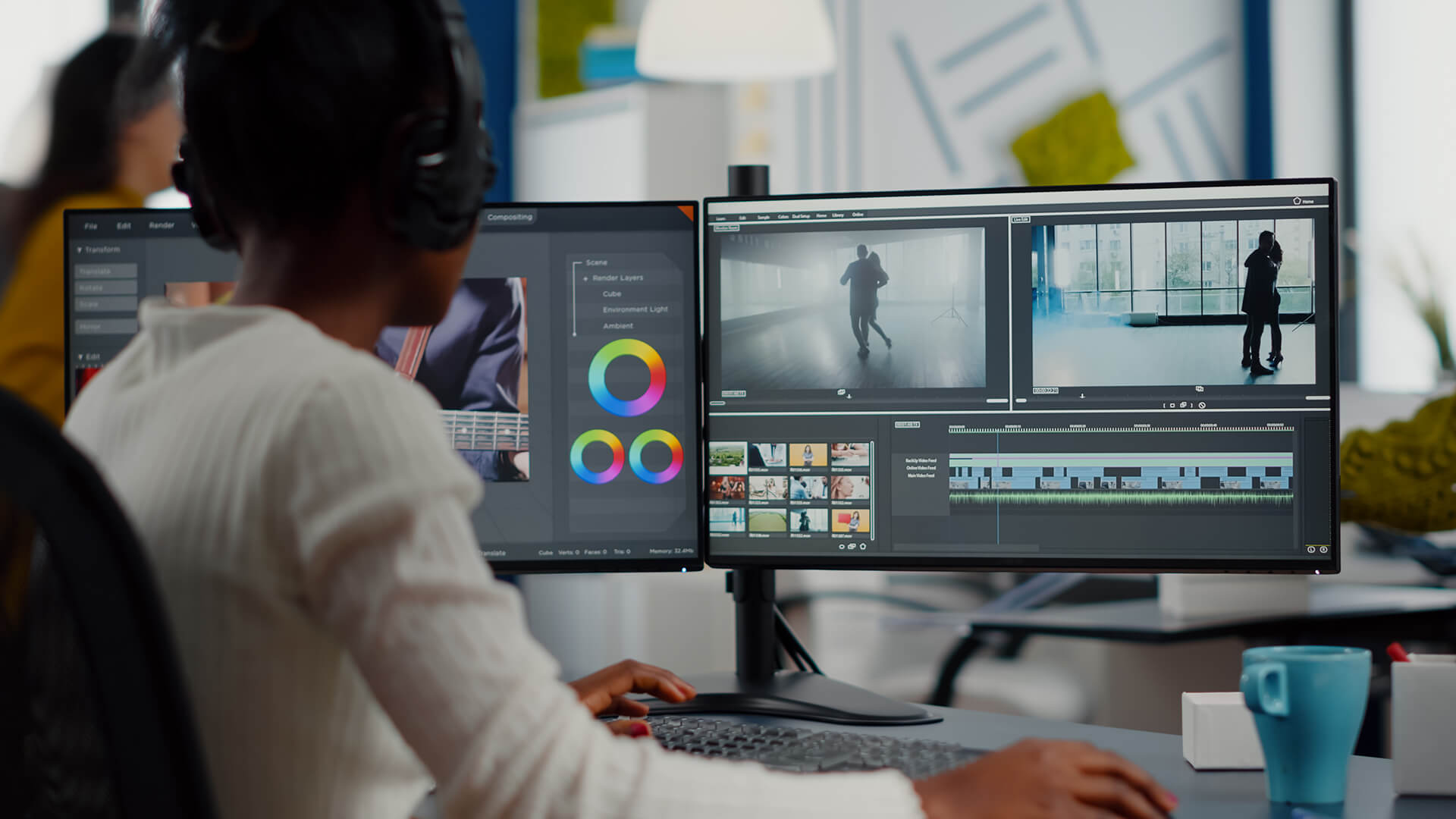
The best computer for video editing in the UK could be a Mac or a Windows machine, depending on the tools you use and your workflow. The better option depends on your software, upgrade plans, and how much control you want over the hardware.
Why Some Creators Prefer Mac
Mac is a powerful machine for editors who want a smoother all-in-one workflow. Final Cut Pro remains a Mac-only application, and Apple positions current systems like the Mac Studio around demanding professional workloads. That includes high-end editing, large memory ceilings, and strong media performance on Apple silicon.
Windows Offer More Choice and Flexibility
Windows wins on hardware variety. If you opt for a custom-built Windows desktop, you have far more freedom over the exact processor, graphics card, memory, storage, and case design.
Which Platform Offers Better Value in the UK?
For many buyers, Windows offers better value because it gives more routes into a strong editing setup. You can build around mid-range parts, choose a more affordable gaming pc and use it for editing, or step up to a high-end pc with stronger cooling and easier upgrades. That flexibility is hard to ignore if value matters.
Mac can still make sense if your workflow suits it and you want a cleaner platform. But if you are looking for a desktop with more control over parts, upgrades, and price, Windows usually gives a broader range of options.
Best Computers for Video Editing by Budget in the UK
Budget changes what “best” really means. The best video editing computer at £900 is very different from one at £2,500. The goal is not to chase the biggest numbers. It is to buy enough performance for the type of editing you actually do. Adobe's own guidance makes that clear by separating minimum HD requirements from recommended specs for HD, 4K, and higher-resolution work.
Best Budget Option: Under £1,000
At this level, the smartest move is to buy a balanced video editing PC rather than a flashy one. For 1080p work and lighter 4K projects, you should focus on a solid modern CPU, 16GB to 32GB of RAM, a dedicated GPU, and at least a 1TB NVMe SSD.
Best Mid-Range Option: £1,000 to £2,000
For most users, this is the real sweet spot. If you are trying to buy the best desktop for video editing without overspending, this bracket is where 4K editing starts to feel comfortable rather than merely possible. It is also where 32GB of RAM, a stronger multi-core CPU, and a better dedicated GPU become realistic together. Adobe's recommended guidance for HD, 4K, and higher resolutions supports that step up in CPU speed, RAM, and GPU class.
Best High-End Workstation: £2,000+
Once you move above £2,000, you are paying for headroom as much as raw speed. With this budget, you can get a high-end PC for heavy 4K, 8K, RAW workflows, longer timelines, and more demanding effects work. Workstation specialists still recommend fast multi-core CPUs, RTX-class graphics, and more memory for high-end Premiere and Resolve systems, especially once project complexity increases.
Best Laptop Alternative for Editors on the Move
If portability matters, high-end workstation laptops can still be excellent editing tools. They make the most sense for editors working between locations, on client shoots, or in hybrid setups. The compromise is the same as before: you usually get less sustained performance and less upgrade flexibility than you would from a desktop at the same price.
Best Prebuilt vs Custom PCs
For many buyers, a prebuilt Windows desktop is the easier route because it gives you warranty cover, less assembly risk, and a faster path to a working system. A custom build still has the edge if you want total control over PC components, better upgrade planning, or stronger value from carefully chosen parts.
The smartest route depends on how confident you are with hardware and how quickly you need a stable editing system. If you want simplicity, buy prebuilt. If you want maximum control and are comfortable choosing your own parts, custom still has a strong case.
How to Build the Right Video Editing Setup
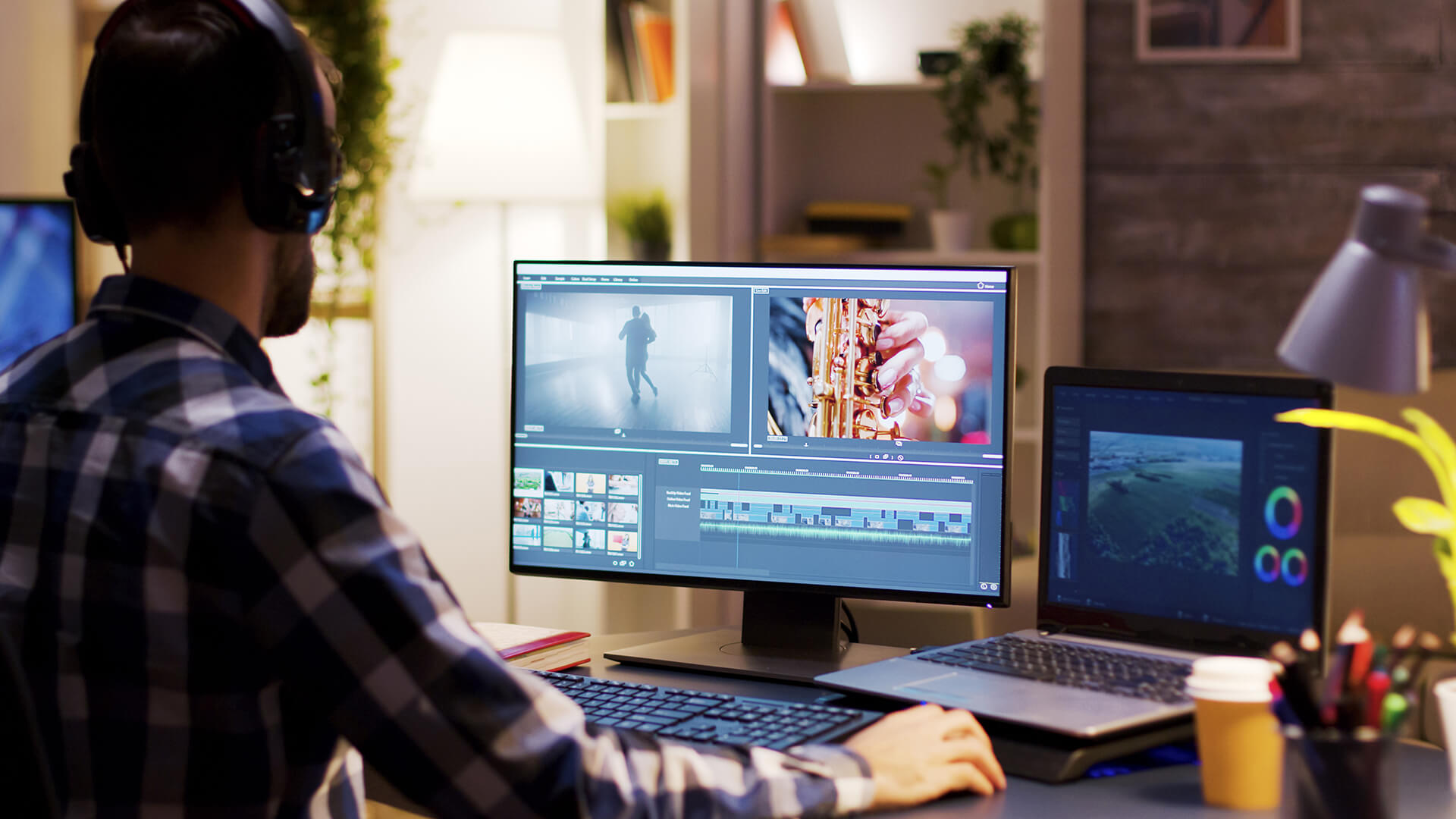
The best video editing setup in the UK is not just the computer itself. It is the whole working environment around it. A well-chosen monitor, fast storage, sensible peripherals, and the right buying decisions can make just as much difference as a faster processor.
-
Match the Setup to the Type of Editing You Actually Do
A YouTube editor does not need the same setup as someone cutting commercials, weddings, or long-form documentaries. If your work is mostly social video and 1080p content, a balanced PC with a strong CPU, decent GPU, and fast SSD storage is usually enough. If you work with multicam, colour-heavy 4K, or HDR timelines, you will need a more powerful system.
-
The Accessories That Matter Most
The biggest accessory upgrade is often the screen. If colour matters, creator monitors and 4K monitors make far more sense than a random office display. Apple's Final Cut Pro support pages explicitly recommend an external reference SDR or HDR monitor when you need to judge image output properly, which is a good reminder that the monitor is part of the editing system, not just a place to view the timeline.
Storage matters just as much. You will need a lot of storage space for large projects. External drives also make sense when internal capacity is limited, especially for active media and backup.
Peripherals can help too. Tools like Blackmagic's DaVinci Resolve Speed Editor help make editing faster than using a mouse alone. In addition to this, keyboards, speakers and headsets also play a vital role.
-
Common Buying Mistakes to Avoid
Here are some mistakes to avoid if you want the right setup for video editing.
-
- Buying too little RAM for your editing workload: A system that feels fine for basic use can struggle quickly once you add 4K footage, effects, or larger timelines.
-
- Spending too much on one part and not enough on the rest: The best desktop for video editing is usually a balanced system, not one built around a single standout spec.
-
- Choosing slow or poorly planned storage: Editing feels much smoother when your operating system, active projects, and backup drives are planned properly.
-
- Ignoring the monitor when colour matters: If you edit visual content regularly, the screen is part of the setup, not an afterthought.
-
- Buying for today's projects only: A machine that only just meets your current needs can feel limited much sooner than expected.
-
- Paying for power you will never use: The right video editing computer should match the type of footage, software, and workflow you actually work with.
Final Verdict: What Is the Best Computer for Video Editing?
The best computer for video editing in the UK is the one that matches your footage, your software, and your working style. For most people, that means a balanced mid-range system with a strong CPU, enough RAM, a capable GPU, and fast SSD storage. That is usually the point where 4K editing starts to feel comfortable rather than frustrating.
If you work mainly at one desk, a desktop is the right choice as it offers more power, easier upgrades, and better long-term value. If you need portability, powerful laptops are the best option.
Frequently Asked Questions
What specs do I need for 4K video editing in the UK?
A solid multi-core CPU, 32GB of RAM, a capable dedicated GPU, and fast NVMe SSD storage are the safest starting point.
Is a GPU necessary for video editing, or is a CPU enough?
The CPU matters a lot, but a GPU is now very important for effects, playback, colour work, and faster exports in many editing apps.
Are Macs better than PCs for video editing in 2026?
Not always. Macs suit some workflows very well, while PCs offer more hardware choice, easier upgrades, and often better value.
What is the best budget computer for video editing in the UK?
For budget editing, the best option is usually a balanced desktop with a modern CPU, 16GB to 32GB of RAM, a dedicated GPU, and SSD storage.
How much RAM is enough for Premiere Pro or DaVinci Resolve?
16GB is fine for lighter editing, 32GB is the better baseline for serious 4K work, and 64GB or more makes sense for heavier projects.
You can pay with:
*PayPal Credit Representative Example: Assumed credit limit £1,200, Representative 23.9% APR (variable). Purchase rate 23.9% p.a (variable).Terms & Conditions apply.


PayPal Credit and PayPal Pay in 3 are trading names of PayPal UK Ltd, 5 Fleet Place, London, United Kingdom, EC4M 7RD. Terms and conditions apply. Credit subject to status, UK residents only, Five Tech LTD acts as a broker and offers finance from a restricted range of finance providers. PayPal Pay in 3 is not regulated by the Financial Conduct Authority. Pay in 3 eligibility is subject to status and approval. 18+. UK residents only. Pay in 3 is a form of credit. Check if affordable and how you will repay. May make other borrowing more difficult or expensive. See product terms for more details.
Copyright © 1996-2026 Fivetech LTD | Terms and Conditions
box.co.uk & Box are trading names of Five Tech Limited. Registered office: Box LTD, Unit 10 Woodford Trading Estate, Woodford Green IG8 8HF