


 Menu
MenuMenu


Get Sales Advice from Mon - Fri 9am - 5:00pm:
020 3337 8950LAST UPDATED: December 10, 2025
Asus Chromebook & Google AI: What Built‑In Features You’ll Actually Use
Chromebooks have evolved into much smarter everyday machines thanks to Google’s latest AI upgrades built directly into ChromeOS. This shift pairs perfectly with ASUS’s long-standing reputation for delivering high-end, forward-thinking devices, creating a combination that feels polished and genuinely helpful. With ASUS Chromebook Plus hardware designed to handle these enhancements, AI features come to life in a way that supports studying, working and creating with ease. This blog highlights the ASUS Chromebook AI features that truly matter and the ASUS models that make the best use of them.
11 Asus Chromebook AI Features that Actually Matter
Google’s latest upgrades make ChromeOS far more capable, but not every tool will matter to everyday users. The list below focuses on the Asus Chromebook AI features that genuinely improve studying, creating and multitasking. These are the built-in tools you’ll actually use on supported ASUS Chromebook Plus models and other AI-Powered laptops.
1- Gemini (AI Assistant) on Desktop / Home Screen
Gemini sits at the centre of many Asus Chromebook AI features, offering a fast and flexible way to handle everyday tasks. With a dedicated app pinned to the shelf, you can brainstorm ideas, plan assignments, draft content, or get quick explanations without opening separate tools. On ASUS Chromebook Plus models, Gemini responds smoothly to stronger hardware support, making it feel like a built-in companion rather than an add-on. It also integrates neatly with other Google services, which is especially helpful if you rely on a Google Chromebook for work or study. Laptops with Gemini built-in are a smarter and secure choice, especially if you are looking for a future-ready machine.
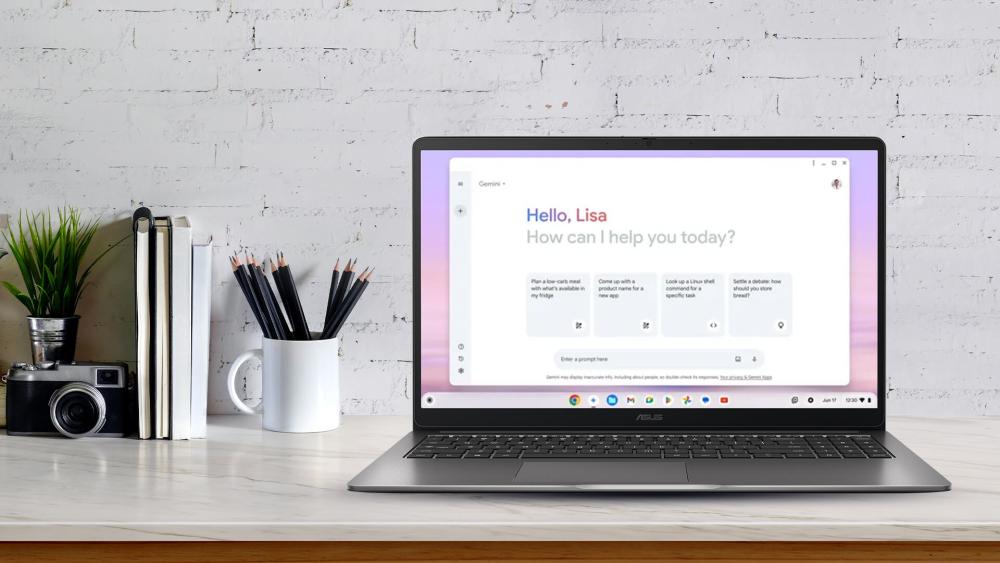
2- Help Me Write (AI Writing Assistance)
Help Me Write feels instantly useful the moment you start typing. Whether you are using Asus Chromebooks for drafting an email, shaping an assignment or trying to make a message sound more natural, a quick right-click gives you options to rewrite, adjust tone or tidy up your wording. For users who own ASUS Chromebook Plus AI devices, it blends smoothly into everyday tasks and helps keep writing clear and efficient without disrupting your flow.
3- Help Me Read / Summarisation & Simplification
Help Me Read is ideal for anyone who deals with long articles, research pages or dense PDFs. Instead of scrolling endlessly, you can highlight the text and instantly get a shorter, clearer version or a simplified explanation that’s easier to understand. It’s especially handy for students, professionals and anyone juggling multiple sources of information in a busy day. The convenience of having quick summaries built directly into student laptops with ChromeOS makes it one of the most practical Asus Chromebook AI features.
4- Magic Editor (AI-Powered Photo & Video Editing)
Chromebook Magic Editor makes everyday photo and video tweaks feel effortless. You can clean up a background, shift an object to a better spot or brighten a dull image with simple drag-and-drop gestures. For people who want quick, polished results without learning complex software, it’s a genuinely useful touch. This is where Asus Chromebook AI features feel naturally practical, helping you create cleaner visuals in seconds.
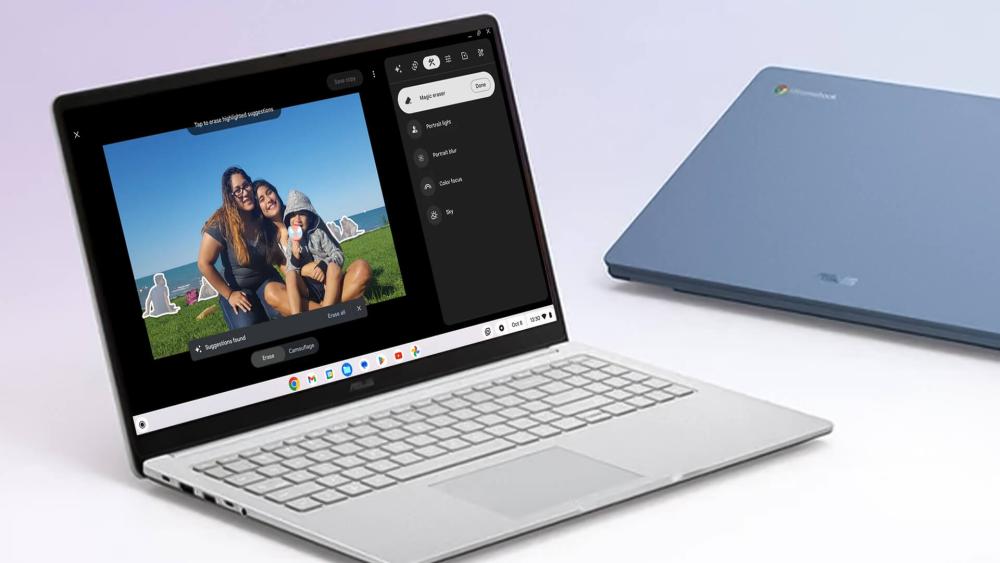
5- Generative Wallpapers & Video-Call Backgrounds
Generative wallpapers add a bit of personality to your desktop by creating unique designs based on your prompts or mood. It’s a quick way to refresh your workspace without downloading anything or scrolling through long theme lists. The same creative tools apply to video calls, letting you generate backgrounds that look cleaner and more professional, especially if you're studying or working from home. The AI camera background blur is a small touch that makes everyday interactions feel more polished while working on ASUS Chromebook Plus AI models.
6- Select to Search / Screen Selection (Lens-Based Visual Search)
Select to Search is one of the best Asus Chromebook AI features for everyday use, mainly because it works so naturally in the background. Highlight anything on your screen, whether it’s a product name, an image, a phrase or even a recipe, and Lens instantly brings up relevant results without opening a new tab. This small convenience makes a Google Chromebook much more useful and practical when you're multitasking across different apps.
7- Text Capture (OCR)
AI text capture is ideal for turning information on your screen into something you can actually use. Whether it’s notes from a lecture slide, details from a receipt or text inside an image, you can extract it instantly and drop it into a document or calendar event. It saves time when dealing with mixed media or PDFs, and it keeps everything more organised if you’re switching between tasks. This simple but clever tool often feels like one of ChromeOS’s quiet strengths that you can benefit from on your new Chromebook.

8- Quick Insert Key (Shortcut Panel to AI Tools)
The Quick Insert key brings your most useful tools into one place. Press it, and you can pull in images, GIFs, emojis, Drive files or writing suggestions without jumping between tabs. It’s especially helpful when you're creating a presentation or drafting something on a Google laptop, because everything you need sits just a shortcut away. Keeping key options within easy reach helps you stay focused on the task instead of navigating menus.
9- Smart Productivity Tools (AI-Assisted Workflow)
Smart productivity features help keep your workspace organised without much effort. ChromeOS can recognise related tabs and windows, group them and surface the apps you’re most likely to use next. It’s a subtle way of reducing the clutter that builds up when you're researching, writing or juggling multiple projects at once. It is one of the most important Asus Chromebook AI features and makes everyday tasks feel more structured and easier to manage.
10- Welcome Recap / Session Restore
Welcome Recap gives you a quick snapshot of what you were working on as soon as you log back in. Instead of hunting through tabs, documents or apps, everything you left open appears in one clean view so you can jump straight back into your task. It’s especially helpful on a Chromebook Plus device if you multitask often or switch between work and study during the day.
11- Smart Tab / Window Grouping
Smart tab and window grouping keep your workspace tidy by organising related pages and apps automatically. If you’re researching a topic, preparing a project or comparing information, ChromeOS clusters everything so it’s easier to move between tasks without losing your place. This gentle organisation helps sessions feel more streamlined, especially on a Google Chromebook, where multitasking is part of everyday use.
Which Asus Chromebook Models Are Best for Using Google AI Features?
The full suite of Google’s AI tools is available only on ASUS Chromebook Plus models. These devices meet the hardware standards needed to run advanced features smoothly, including stronger processors, higher memory capacity and improved webcams for AI-powered video enhancements. Regular models still offer a solid ChromeOS experience, but if you want to get the full range of Asus Chromebook AI features, sticking to Chromebook Plus is the better choice.
ASUS Chromebook Plus Enterprise CB54
The CB54 is a strong fit for anyone who wants a smooth ChromeOS experience with enough power to handle Google’s AI tools confidently. Its Intel Core Ultra 5 processor and fast LPDDR5x memory keep multitasking responsive, while the 14-inch 120 Hz WQXGA display makes work and streaming feel sharp and fluid. With Thunderbolt 4, USB-C and HDMI included, it’s flexible enough for office setups or hybrid work. The lightweight design and backlit keyboard round off a polished package that suits both professional and everyday use.
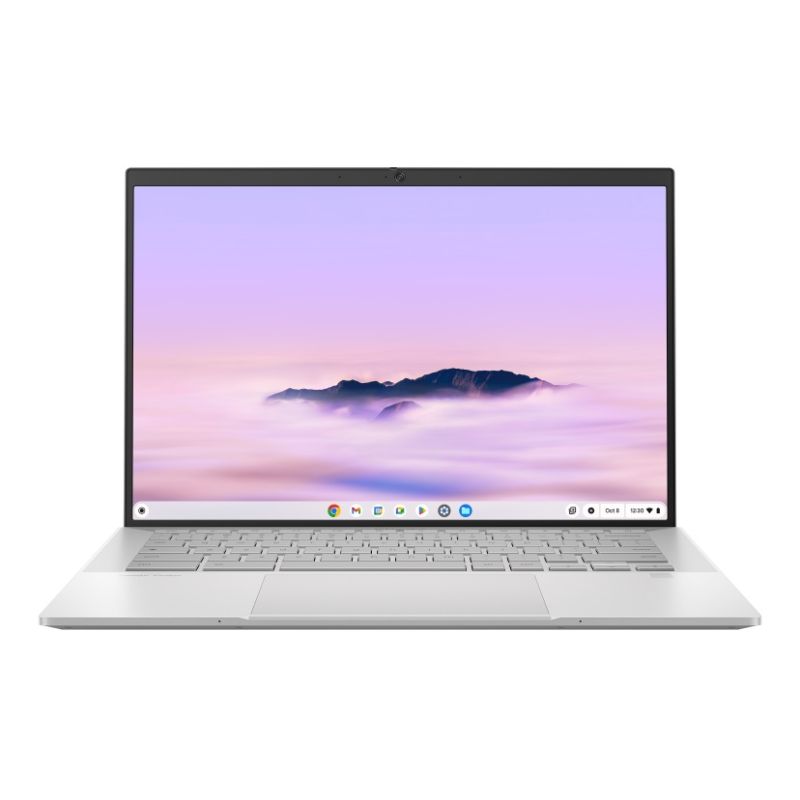
ASUS Chromebook Plus Enterprise CB34
The CB34 is a reliable option for users who want a responsive, touch-friendly Chromebook without stretching the budget. Its Intel Core i3 processor handles everyday tasks smoothly, and the 14-inch Full HD touchscreen adds flexibility for note-taking, browsing and light creative work. With WiFi 6E, USB-A, USB-C and HDMI onboard, it fits well into both office and home setups. The backlit keyboard and balanced weight make it a comfortable choice for longer work sessions or study days.
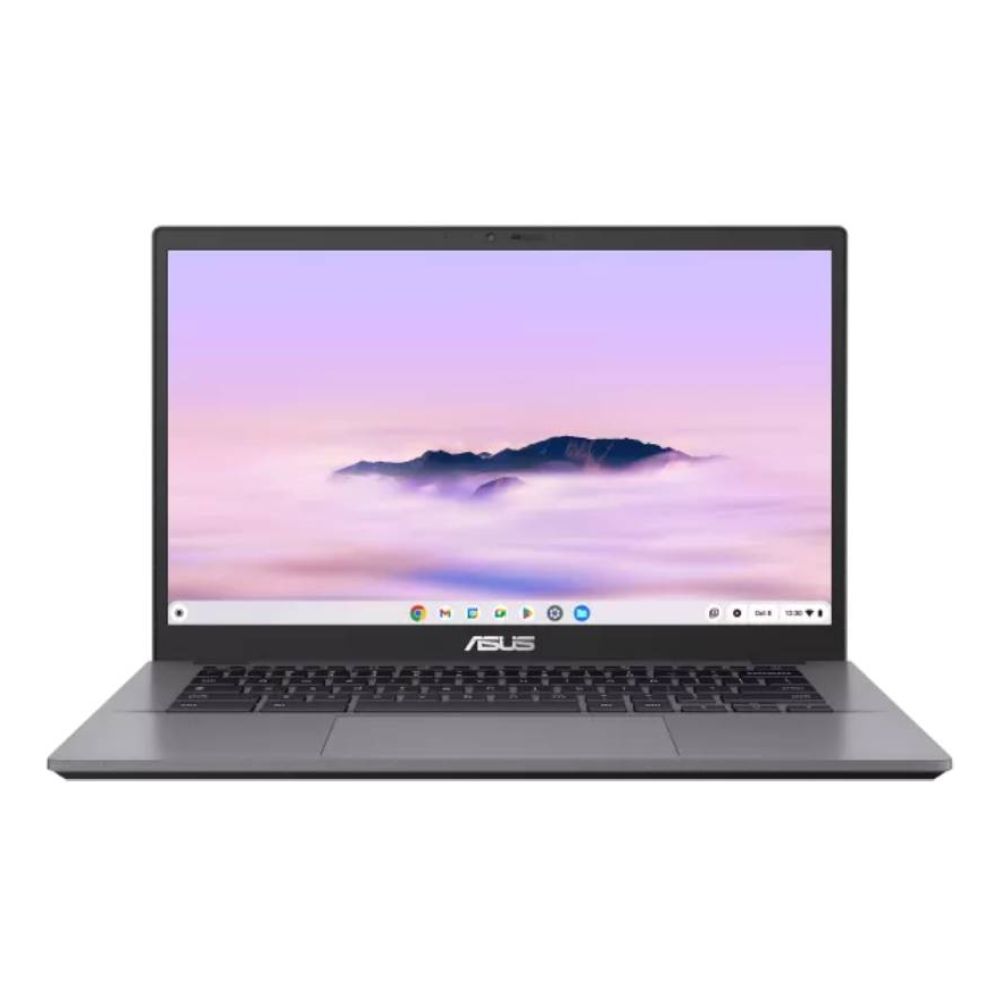
Conclusion
Google’s latest AI upgrades make everyday tasks feel more intuitive, and ASUS Chromebook Plus models bring out the best of those tools with capable hardware and smooth performance. Whether you’re using AI to tidy up writing, simplify reading, enhance video calls or organise your workspace, the improvements feel practical and genuinely helpful. For anyone interested in buying a Chromebook that handles modern workflows with ease, the combination of ChromeOS and Asus Chromebook AI features offers a balanced and reliable way to get things done. If AI features are not your thing, you can go for the Asus Chromebook Flip or Standard models as well. However, it is worth reading our in-depth ASUS Chromebook comparison guide to make the right choice as per your needs.
FAQs
Do all Chromebooks support the new Google AI features?
No, the full set of tools is available mainly on Chromebook Plus models, including supported ASUS devices. Standard models still receive general ChromeOS updates, but may not meet the hardware requirements for advanced AI tools.
What is the difference between a regular Chromebook and a Chromebook Plus?
Chromebook Plus models come with higher performance standards, better cameras, more RAM and improved displays, which allow Google’s AI tools to run smoothly. They’re designed for heavier multitasking and long-term reliability.
Can AI features improve video calls on an ASUS Chromebook?
Yes. Tools like noise reduction, lighting adjustment and real-time translation help calls look and sound clearer. These enhancements work automatically through ChromeOS without needing extra apps.
Is Magic Editor available on every Google Chromebook?
Magic Editor is supported on Chromebook Plus models that meet Google’s hardware requirements. It allows simple photo and video edits directly in Google Photos without needing professional editing software.
Do ASUS Chromebooks need an internet connection for Google AI features to work?
Most AI tools in ChromeOS rely on online processing, so you’ll get the best experience when connected to the internet. Some features still work offline, but tasks like summarising text or generating images generally require access to Google’s online services.
You can pay with:
*PayPal Credit Representative Example: Assumed credit limit £1,200, Representative 23.9% APR (variable). Purchase rate 23.9% p.a (variable).Terms & Conditions apply.


PayPal Credit and PayPal Pay in 3 are trading names of PayPal UK Ltd, 5 Fleet Place, London, United Kingdom, EC4M 7RD. Terms and conditions apply. Credit subject to status, UK residents only, Five Tech LTD acts as a broker and offers finance from a restricted range of finance providers. PayPal Pay in 3 is not regulated by the Financial Conduct Authority. Pay in 3 eligibility is subject to status and approval. 18+. UK residents only. Pay in 3 is a form of credit. Check if affordable and how you will repay. May make other borrowing more difficult or expensive. See product terms for more details.
Copyright © 1996-2026 Fivetech LTD | Terms and Conditions
box.co.uk & Box are trading names of Five Tech Limited. Registered office: Box LTD, Unit 10 Woodford Trading Estate, Woodford Green IG8 8HF