


 Menu
MenuMenu


Get Sales Advice from Mon - Fri 9am - 5:00pm:
020 3337 8950LAST UPDATED: February 13, 2026
Best AOC Monitor Settings for Gaming (Performance and Picture Quality Guide)
Getting the best AOC monitor settings for gaming isn't about copying one "perfect" preset; it's about tuning your screen for the way you play. Whether you're chasing maximum FPS in competitive shooters, richer visuals in open-world games, or smooth console gaming at 120Hz, AOC monitors give you the flexibility to balance performance, clarity, and comfort.
This guide breaks down the optimal settings for different game types, explains what each option does, and shows how to get the most from popular AOC displays from AOC 27-inch monitors and curved screens for gaming, to AOC ultrawide and 4K monitors.
If you're choosing or fine-tuning an AOC PC monitor, this walkthrough will help you get there faster.
Why Optimising Your AOC Monitor Settings Matters for Gaming
Even the best AOC monitor won't deliver its full potential straight out of the box. While AOC gaming monitors are well known for fast refresh rates, low response times, and sharp visuals, the default settings are designed to work "well enough" for general use, not to maximise gaming performance.
Smooth gameplay isn't only about GPU or CPU power. Your monitor plays a critical role in how fluid motion looks, how clearly enemies appear in dark scenes, and how responsive the game feels. Incorrect refresh rates, overdrive settings, or colour profiles can introduce stutter, ghosting, or washed-out visuals, even on a high-end AOC PC monitor.
Taking a few minutes to review and optimise your AOC monitor settings before a gaming session can noticeably improve motion clarity, input responsiveness, and overall immersion especially in fast-paced titles.
Step 1: Double-Check Your Display and Refresh Rate Settings
One of the most common issues gamers face is running their monitor below its maximum refresh rate. This happens surprisingly often, particularly on 144Hz or 165Hz AOC gaming monitors.
From your Windows desktop, right-click and open Display Settings, then scroll down to Advanced Display Settings. Here, you'll see your monitor's current resolution and refresh rate. To confirm everything is set correctly, open Display Adapter Properties, navigate to the Monitor tab, and select the highest available refresh rate from the dropdown menu.
This step alone can dramatically improve motion smoothness on AOC screens, especially on popular models like AOC 27 inch monitors and high-refresh AOC curved monitors.
Step 2: Install and Use AOC G-Menu Software
AOC's G-Menu software makes fine-tuning far easier than relying on physical OSD buttons. It allows you to adjust gaming settings directly from your desktop, switch profiles quickly, and fine-tune visuals without interrupting gameplay.
After downloading G-Menu from AOC's official support page and installing it, start by turning Game Mode off. This gives you full manual control rather than locking you into aggressive presets.
Within Advanced Settings, you can adjust brightness, contrast, shadow control, and colour intensity. A balanced starting point for most games is moderate shadow contrast, restrained colour boost, and neutral contrast levels. This avoids crushing detail in dark scenes or oversaturating colours, which can be distracting in competitive games.
Setting colour temperature to sRGB provides more natural tones, which works well across FPS, RPGs, and general desktop use on AOC computer monitors.
Overdrive and Response Time: Finding the Right Balance
Overdrive controls how quickly pixels change colour. On AOC monitors, setting overdrive to Medium usually offers the best balance. Strong overdrive can cause overshoot, where bright halos appear around fast-moving objects, while low overdrive may introduce ghosting.
For most AOC gaming displays including ultrawide and high-refresh models, Medium overdrive delivers cleaner motion without visual artefacts. Competitive shooters may benefit from slight adjustments, but aggressive settings are rarely necessary.
What Are the Best AOC Monitor Settings for Gaming?

The "best" AOC monitor settings depend on three things: the type of games you play, the hardware you're using (PC or console), and your personal preference for clarity versus colour depth.
For fast-paced competitive games, refresh rate, response time, and sync technology matter most. For story-driven or cinematic games, colour accuracy, contrast, and shadow detail become more important. Casual and mixed-use setups usually benefit from balanced settings that work well across gaming and everyday desktop use.
Across the AOC monitor lineup, the key settings you'll adjust most often are refresh rate, overdrive (response time), FreeSync or G-Sync compatibility, brightness and contrast, gamma, black level control, and sharpness. Understanding how these work together is more valuable than relying on aggressive "Game" presets alone.
Recommended AOC Gaming Monitor Settings by Game Type
| Game Type | Refresh Rate | Overdrive | FreeSync / G-Sync | Motion Blur Reduction | Brightness | Gamma | Black Level | Sharpness |
| Competitive FPS | Max supported (144–240Hz) | Medium / Strong | On (disable V-Sync) | Optional (FPS only) | 60–75% | 2.2 | Slight boost | Low |
| Casual Action / Shooters | High stable (120–165Hz) | Medium | On | Off | 55–70% | 2.2 | Neutral | Low |
| RPG / Open-World | Native refresh | Weak / Medium | On | Off | 50–65% | 2.0–2.2 | Minimal | Low |
| Racing / Sports | High stable | Medium | On | Optional | 60–75% | 2.2 | Slight boost | Low |
| Console (60Hz / 120Hz) | Match console output | Medium | On (if supported) | Off | 55–70% | 2.2 | Neutral | Low |
This table acts as a baseline. Fine-tuning in real gameplay is always recommended.
How to Set the Best Refresh Rate and Resolution on an AOC Monitor for Gaming
How to Enable 144Hz or 165Hz on an AOC Gaming Monitor
Many users never experience their monitor's full performance because the refresh rate isn't enabled. Make sure you're using DisplayPort or HDMI 2.0+ cables, then set the refresh rate in Windows display settings or your GPU control panel. Some AOC screens also require the refresh rate to be enabled inside the monitor's on-screen display.
Should You Use Native Resolution or Downscale?
Native resolution always gives the sharpest image. However, lowering resolution can improve FPS on weaker GPUs. On AOC 4K monitors, many players prefer 1440p for smoother performance, while AOC 27 inch monitors often perform best at native 1440p.
Best Refresh Rate Settings for PC vs Console
PC gamers should aim for the highest refresh rate their system can sustain consistently. Console players should match the console output; 60Hz for standard titles or 120Hz where supported on newer consoles.
What Response Time and Overdrive Settings Should You Use?
Overdrive controls how quickly pixels change colour. Too low, and you'll see ghosting. Too high, and you'll see inverse ghosting or halo effects.
For competitive FPS, Medium or Strong overdrive usually provides the cleanest motion. For RPGs or casual gaming, a Moderate setting reduces artefacts while keeping motion smooth. Testing overdrive in real gameplay not menus is the best way to find the right balance on your AOC computer monitor.
Should You Use FreeSync or G-Sync Compatible on an AOC Monitor?
AOC gaming displays widely support FreeSync and many are G-Sync Compatible. These technologies sync your monitor's refresh rate to your GPU output, reducing screen tearing and stutter.
For most users, enabling FreeSync or G-Sync is recommended. Competitive players running extremely high FPS may disable it to minimise latency, but for mixed gaming it provides a smoother experience with fewer visual distractions.
Best Colour and Picture Settings on an AOC Monitor for Gaming
Accurate colour modes like sRGB or User mode provide consistent visuals across games and desktop use. "Game" modes can boost saturation, but often crush detail.
Brightness should be set high enough to avoid eye strain without washing out highlights. Contrast should remain close to default. Gamma around 2.2 works well for most titles, while FPS players may slightly adjust black level controls to reveal shadow detail without flattening the image.
Dynamic contrast, artificial sharpening, and HDR emulation are usually best left off unless a specific game benefits from them.
AOC Monitor Settings for Console Gaming (PlayStation & Xbox)
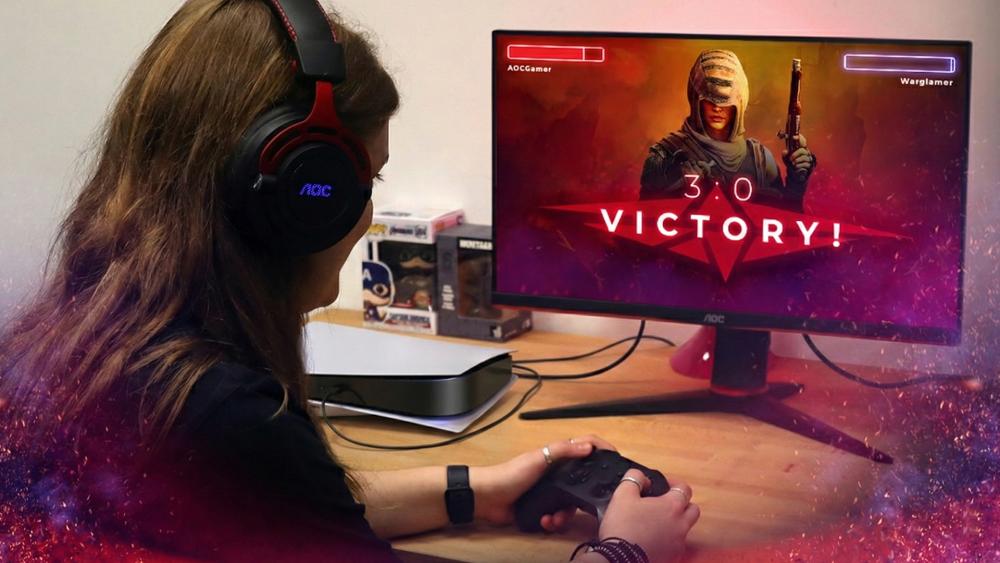
Console gaming generally benefits from simpler, cleaner settings than PC gaming, but a few key adjustments make a noticeable difference in clarity, smoothness, and input response.
Best AOC Settings for 60Hz Console Gaming
- Set the monitor to Game or Standard mode rather than Cinema or FPS presets.
- Keep sharpness low to avoid artificial edge enhancement.
- Adjust brightness to a comfortable level for your room lighting (not maximum).
- Disable dynamic contrast and unnecessary image enhancements to reduce input lag.
- Ensure the console output is locked to 60Hz to avoid scaling issues.
Best AOC Settings for 120Hz Console Gaming
- Confirm your console is set to 120Hz output in system settings.
- Use a high-quality HDMI cable that supports 120Hz.
- Set the monitor's refresh rate to match the console signal.
- Disable extra processing features that can interfere with motion clarity.
- FreeSync can be enabled if supported, but only if the game maintains stable frame rates.
Optimising HDR on AOC Monitors for Consoles
- HDR works best on high pixel monitors with sufficient brightness.
- Enable HDR both on the console and within the game itself.
- Use the console's HDR calibration tool before adjusting monitor settings.
- Avoid raising brightness too high, as it can wash out highlights and blacks.
- If HDR looks dull or inconsistent, SDR mode may provide better overall clarity.
Saving and Switching AOC Gaming Profiles
Many AOC monitors support multiple custom profiles, which makes a big difference if you play different types of games or switch between gaming and everyday use. Instead of constantly tweaking settings, profiles let you save tailored configurations and switch between them quickly through the on-screen display or AOC software. This keeps performance consistent and avoids the frustration of readjusting brightness, colour, or response settings every time you change what you're doing.
Why Using Multiple Profiles Helps
Different types of content place different demands on your monitor, which is why a single "one-size-fits-all" setup rarely works well. Competitive games benefit from brighter images, clearer shadow detail, and faster response settings to improve visibility and reaction time. Story-driven or cinematic games, on the other hand, tend to look better with richer colours, softer contrast, and less aggressive processing. Everyday desktop use also benefits from a more neutral, comfortable setup that reduces eye strain during long sessions.
Suggested Profile Setup
A practical approach is to create a few simple profiles that cover most use cases. A competitive FPS profile should focus on visibility and responsiveness, using slightly higher brightness, moderate shadow control, and a balanced overdrive setting. A cinematic or RPG profile works best with slightly reduced brightness, richer colour tones, and smoother contrast for visual depth. For general desktop or work use, a neutral colour temperature and lower brightness help maintain comfort during extended use. This setup is especially useful if you rely on the same AOC monitor for gaming and desktop displays for work, allowing quick transitions without sacrificing comfort or performance.
Common Problems with AOC Monitor Settings (and How to Fix Them)

Why does my AOC monitor not run at 144Hz or 165Hz?
This is usually caused by incorrect cables or system settings. Make sure you're using DisplayPort or a suitable HDMI version, then confirm the refresh rate is enabled in Windows display settings, your GPU control panel, and the monitor's on-screen menu. Updating graphics drivers can also unlock missing refresh rate options.
Why do I see ghosting or inverse ghosting on my AOC monitor?
Ghosting is often linked to overdrive settings. If overdrive is set too high, you may notice bright or dark trails behind moving objects. Switching to a medium overdrive setting typically delivers the best balance between clarity and smooth motion during gaming.
Why does my game look washed out or too dark on an AOC monitor?
This usually comes down to gamma, black level, or HDR conflicts. If HDR is enabled in Windows but the game doesn't support it properly, colours can look flat. Resetting the monitor to defaults and adjusting brightness, gamma, and shadow controls gradually helps restore balanced visuals.
Why is there screen tearing even with FreeSync enabled?
Screen tearing can occur if your frame rate exceeds the monitor's FreeSync range. Make sure FreeSync is enabled in both the monitor and GPU settings, and consider limiting FPS slightly below the maximum refresh rate for smoother results.
Final Thoughts: Getting the Most from Your AOC Monitor
Dialing in the right settings can make a bigger difference than upgrading hardware alone. Even the best AOC monitor will only perform at its peak when refresh rate, overdrive, sync technology, and picture settings are properly tuned for your games and setup. Once configured correctly, AOC monitors consistently deliver smooth motion, sharp visuals, and low input lag across competitive and casual gaming alike.
Whether you're using AOC Agon gaming displays for high-refresh esports play, exploring rich visuals on premium OLED panels, or setting up immersive widescreen displays for open-world games, the right settings help you unlock the full potential of the panel. The same applies if your monitor doubles as one of your professional work displays during the day, or if you rely on a lightweight portable monitor for flexible gaming and productivity setups.
If you're still deciding on the right screen, or considering an upgrade, Box.co.uk makes it easy to explore the full AOC range in one place. You can compare the latest AOC gaming monitors, ultrawide and curved options, OLED displays, and everyday monitors with clear specifications, UK availability, and competitive pricing. Whether you're fine-tuning an existing setup or choosing your next display, Box helps you find the right AOC monitor for your games, workspace, and budget; all with fast UK delivery and trusted support.
Frequently Asked Questions
What are the best all-round AOC gaming settings?
Use native resolution, highest stable refresh rate, Medium overdrive, FreeSync on, brightness around 60–70%, and gamma at 2.2.
Game presets or custom settings?
Custom settings offer better consistency. Presets are useful as starting points.
What reduces input lag most?
High refresh rate, low overdrive artefacts, and disabling unnecessary processing.
Different settings for PC and console?
Yes. Consoles benefit from simpler settings and matched refresh rates.
You can pay with:
*PayPal Credit Representative Example: Assumed credit limit £1,200, Representative 23.9% APR (variable). Purchase rate 23.9% p.a (variable).Terms & Conditions apply.


PayPal Credit and PayPal Pay in 3 are trading names of PayPal UK Ltd, 5 Fleet Place, London, United Kingdom, EC4M 7RD. Terms and conditions apply. Credit subject to status, UK residents only, Five Tech LTD acts as a broker and offers finance from a restricted range of finance providers. PayPal Pay in 3 is not regulated by the Financial Conduct Authority. Pay in 3 eligibility is subject to status and approval. 18+. UK residents only. Pay in 3 is a form of credit. Check if affordable and how you will repay. May make other borrowing more difficult or expensive. See product terms for more details.
Copyright © 1996-2026 Fivetech LTD | Terms and Conditions
box.co.uk & Box are trading names of Five Tech Limited. Registered office: Box LTD, Unit 10 Woodford Trading Estate, Woodford Green IG8 8HF