


 Menu
MenuMenu


Get Sales Advice from Mon - Fri 9am - 5:00pm:
020 3337 8950LAST UPDATED: December 29, 2025
Fixing Artifacts, Flicker & Crashes on AMD GPUs: A Complete Diagnostic Guide
Modern AMD Radeon GPUs deliver excellent performance across gaming, creative work, and compute workloads, but like any high-performance hardware, they can occasionally show visual artifacts, flickering, or unexpected crashes. These symptoms can be worrying, especially when they appear suddenly during gameplay or even at the desktop. The good news is that most AMD GPU issues stem from software instability, VRAM stress, thermal behaviour, or power fluctuations rather than permanent hardware failure. With the right troubleshooting steps, many of these problems can be resolved safely at home.
This guide explains why artifacts and instability occur, how to diagnose the exact cause, and which fixes restore smooth, stable performance. Whether you're dealing with flickering, black frames, corrupted colours, or full system crashes, this step-by-step approach helps you understand what’s happening and how to get your Radeon GPU running reliably again.
Why AMD GPUs Show Artifacts, Flicker or Crashes
Graphics corruption rarely appears out of nowhere. Your AMD GPU is responding to underlying conditions, whether thermal, electrical, or software-based and the symptoms you see on screen provide important clues. Understanding these early signs helps you prevent permanent damage and restore stability before issues escalate.
The Common Triggers Behind Visual Corruption
Artifacts such as coloured lines, pixel blocks, shimmering textures, or distortion usually appear when the GPU is pushed beyond stable operating limits. This may happen during a demanding game, in a high-resolution display setup, or after installing new drivers. Corruption can also occur when VRAM suddenly struggles to maintain data accuracy, especially at higher memory clocks or temperatures. These symptoms do not automatically indicate a dying GPU; they often reflect temporary instability that can be corrected.
VRAM Instability vs Driver Instability
VRAM instability typically shows up as persistent patterns repeating shapes, colour bands, broken geometry, or shimmering static, especially during heavy load. Driver instability, on the other hand, produces inconsistent symptoms: flickering that comes and goes, crashing when switching between fullscreen and windowed mode, or sudden black frames. Distinguishing between the two helps guide your next steps. VRAM-related artifacts tend to appear under stress, while driver issues are more likely after updates, game patches, or changes within Radeon Software.
Power Fluctuations and Overheating
Power delivery is critical for Radeon GPUs. If your power supply cannot maintain a stable voltage, or if PCIe cables aren’t seated properly, your GPU may flicker, throttle, or crash under load. Overheating VRAM can also create temporary artifacts that disappear once temperatures return to normal. Many users experience flicker or corruption only during warm weather or long play sessions, which signals thermal imbalance rather than a hardware defect.
When Symptoms Indicate Deeper Hardware Issues
If artifacts appear even at the desktop, during boot, or before drivers load, the problem may be more serious. Persistent corruption in BIOS, widespread pixel noise, or system freezes during light tasks can indicate aging thermal pads, VRAM degradation, or physical PCB damage. Before assuming hardware failure, though, follow the troubleshooting steps in this guide many issues that appear severe can still be resolved through correct cooling, power, or driver fixes.
For architecture-specific differences in stability and thermal behaviour, see our guide on comparison of RDNA generations.
Quick Checks Before You Begin Troubleshooting

Before diving into deeper diagnosis, it’s important to rule out simple configuration issues. Many flicker, artifact, and crash reports stem from incorrect display settings, unstable software profiles, or loose hardware connections.
Confirming Monitor Connections and Refresh Rates
Check that your DisplayPort or HDMI cable is securely connected at both ends, and that your monitor is set to the correct refresh rate. Attempting to drive an unsupported refresh rate or resolution may cause black frames, flicker, or temporary artifacts. DisplayPort cables also vary significantly by quality a low-grade cable can introduce visual noise that resembles GPU instability.
Resetting Radeon Software Profiles
Radeon Software allows extensive tuning, including undervolting, overclocking, FreeSync configurations, and custom fan curves. Corrupted or overly aggressive settings can lead to flickering, game crashes, or corrupted visuals. Resetting profiles to default helps restore a stable baseline and rules out software conflicts.
Checking Recent Driver Updates or Game Patches
If the issue began immediately after installing new AMD drivers, rolling back to a previous version can help determine whether the update introduced instability. Game patches can also break rendering paths, particularly in titles using advanced shaders or temporal upscaling. Testing different driver versions is a valuable early step.
Ensuring PCIe Slot and GPU Seating Are Stable
A GPU that is even slightly misaligned in the PCIe slot may exhibit flicker or artifacts due to unstable electrical contact. Cleaning the slot, reseating the GPU, and verifying that no sag has developed helps eliminate physical connection faults.
Diagnosing Visual Artifacts (Lines, Blocks, Colour Distortion)
When your AMD GPU displays strange colours, broken geometry, pixel noise, or flickering textures, the pattern and timing of these artifacts reveal critical information about what’s going wrong. Visual corruption does not always mean that your GPU is dying; in many cases, it indicates temporary instability related to VRAM behaviour, heat, or tuning settings.
Artifact Patterns That Indicate VRAM Instability
VRAM is responsible for storing texture data, frame buffers, and rendering information. When VRAM becomes unstable whether from high temperatures, degraded thermal pads, or excessive memory clocks, you may notice repeating shapes, coloured squares, shimmering shadows, or checkerboard patterns. These artifacts typically appear when the GPU is under heavy load, such as during high-resolution gaming or large texture scenes. If the visuals improve when reducing memory clocks or switching to a lighter game, VRAM stability is the likely culprit.
When Overheating Causes Temporary Corruption
Heat is one of the most common drivers of visual artifacts. AMD GPUs monitor core temperature, VRAM temperature, and hotspot temperature, and any one of these reaching unsafe levels can destabilise the image. Overheating-induced artifacts often appear after a long gaming session or in poorly ventilated PC cases. Once the temperature drops, the corruption usually disappears. This behaviour indicates insufficient cooling rather than permanent hardware damage.
How to Load-Test VRAM Safely
To confirm whether VRAM instability is present, running a controlled load test helps isolate the issue. Tools that stress only the memory subsystem allow you to observe how the GPU behaves without putting unnecessary strain on the core. If artifacts appear quickly during VRAM testing but not during general workloads, memory instability is confirmed. Running tests with the case open or fans at higher speed can help determine whether heat is the primary cause.
When to Reduce Memory Clocks or Revert Overclocks
If you have manually overclocked your GPU or even if you purchased a factory-overclocked card reducing memory clocks can stabilise performance. VRAM is often more sensitive to temperature and voltage fluctuations than the GPU core. Dropping memory frequency by a small amount may eliminate artifacts instantly. If you rely on Radeon Software tuning, resetting to default ensures your card is running within a safe, validated configuration.
Diagnosing Flicker, Black Frames or Signal Cutouts
Flickering, brief black screens, or intermittent signal loss are often mistaken for failing hardware, but most of these symptoms originate from the display chain rather than the GPU itself. Display protocols, variable refresh rate technologies, and cable bandwidth limits all play a major role in maintaining a stable image.
DisplayPort / HDMI Issues
DisplayPort and HDMI each have bandwidth and compatibility requirements. A cable that works at 1080p may fail at 1440p 165Hz or 4K 120Hz, producing flicker or signal drops. Worn connectors, damaged latches, or non-certified cables frequently create visual noise that resembles GPU instability. Trying a different cable preferably a certified high-bandwidth option helps determine whether the display chain is responsible.
VRR (FreeSync) Misbehaviour
FreeSync relies on constant communication between the GPU and display. When this handshake fails, the screen may flicker, briefly freeze, or go completely black. These issues often appear during loading screens, fullscreen transitions, or GPU power state changes. Temporarily disabling FreeSync helps reveal whether the issue is VRR-related.
Monitor Firmware or Cable Limitations
Some monitors require firmware updates to function correctly with modern Radeon GPUs, especially models that use early implementations of high refresh rate or VRR standards. Firmware incompatibility may cause flickering or unstable refresh behaviour. If switching cables or inputs stabilises the display, the monitor firmware may require updating.
When PSU Instability Causes Flicker
Power fluctuations can create momentary dips that interrupt the GPU’s signal output. When the PSU cannot deliver consistent voltage, often due to aging components, overloaded rails, or insufficient wattage, flicker may appear under load. These symptoms typically worsen during graphically intensive scenes or high FPS gameplay, pointing to power delivery instability rather than a pure display issue.
If your GPU is losing signal entirely, refer to our guide on recovering Radeon GPU signal issues.
Diagnosing Crashes, Freezes or System Reboots

Crashing behaviour can vary widely: sudden desktop returns, full system shutdowns, game freezes, or black screens requiring a hard reboot. Each type of crash suggests a different underlying cause, ranging from driver conflicts to power instability.
Driver Timeout (TDR) Causes
Windows may trigger a Timeout Detection and Recovery (TDR) event when the GPU fails to respond quickly. This often appears as a black screen followed by a popup that says the display driver has crashed. TDR events commonly occur after a new driver installation, game update, aggressive overclock, or shader compilation issue. If crashes align with a recent driver change, reverting or reinstalling drivers can resolve the issue.
PSU Wattage or Rail Instability
A power supply that is underpowered, aged, or running near capacity may struggle under sudden GPU load spikes. Radeon GPUs especially higher-end models demand consistent power delivery. If your system reboots or freezes during GPU-intensive workloads, PSU instability is a likely cause. Ensuring proper cabling (no split PCIe connectors for high-power cards) and confirming wattage requirements is essential.
CPU/GPU Temperature Spikes
Thermal throttling or overheating can force the GPU to shut down or crash to prevent damage. While GPUs typically attempt to reduce clocks first, extreme temperatures may trigger immediate failure. Monitoring temperature spikes during gameplay helps identify whether cooling is insufficient.
PCIe Link Instability or BIOS Conflicts
Incorrect PCIe settings, outdated BIOS versions, or unstable motherboard firmware can cause the GPU to disconnect momentarily. This results in sudden freezes or full lockups. Setting PCIe to Gen 3, updating BIOS, or reseating the card often resolves these issues.
Radeon Software Fixes for Stability
Many AMD GPU issues stem from software rather than hardware, and Radeon Software includes several tools and reset options that can quickly restore stability. Before assuming a physical fault, it’s essential to eliminate driver corruption, tuning misconfigurations, and feature conflicts that may be causing artifacts, flicker, or crashes.
Clean Driver Reinstall
A clean driver reinstall is one of the most effective ways to resolve GPU instability. Corrupted files, partial updates, or leftover driver data can cause flickering, crashes, and artifacting. Performing a full uninstall rather than installing drivers over existing ones ensures a stable foundation. Once removed, install the latest WHQL Radeon driver directly from AMD’s official website.
Using AMD Cleanup Utility
For deeper issues, AMD’s Cleanup Utility removes every trace of existing drivers, including registry entries, shaders, and outdated settings. This tool is especially useful after switching GPUs, rolling back problematic drivers, or experiencing recurring driver timeout errors. Cleanup Utility places the system into a driver-free state, allowing a completely fresh installation.
Disabling Problematic Features Temporarily
Some Radeon features can become unstable depending on game compatibility, driver revisions, or system configuration. FreeSync, Enhanced Sync, hardware-accelerated GPU scheduling, or manual undervolts may introduce flickering or crashes in specific scenarios. Temporarily disabling these features helps determine whether an optimisation is causing instability rather than the GPU itself.
Game-Specific Tuning Options
Certain games require customised settings to run smoothly. Shader cache resets, anti-lag settings, frame limiters, or FSR tuning may resolve crashes or rendering glitches tied to individual titles. If one game consistently crashes while others run perfectly, adjusting per-game optimisations within Radeon Software can restore stability without affecting global settings.
Hardware Causes You Should Not Ignore
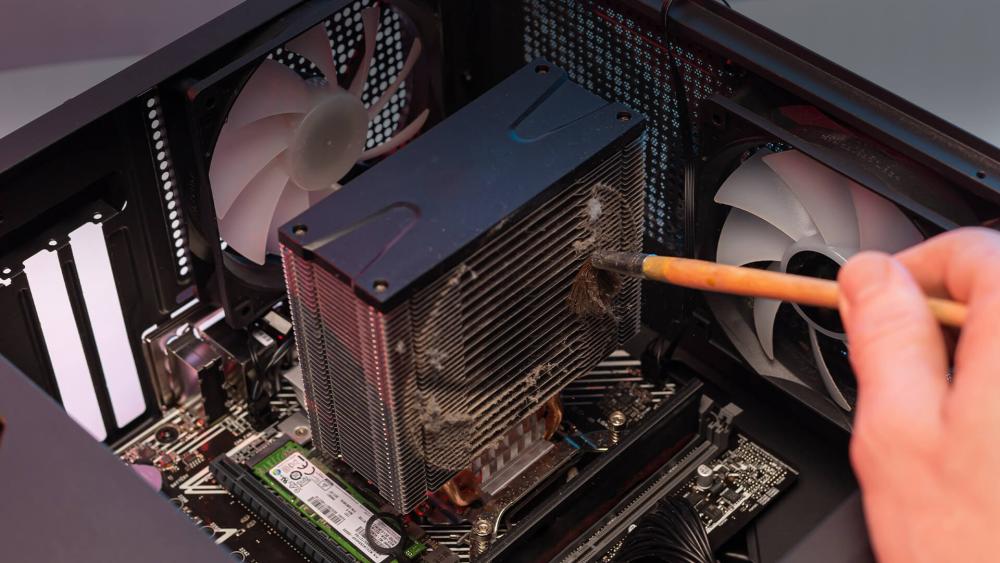
Even when software appears to be the source of a problem, underlying hardware conditions often influence GPU stability. Power delivery, thermals, and physical wear all play a major role in determining how reliably a Radeon GPU performs especially under sustained load.
PSU Degradation and Sudden Power Dips
Over time, power supplies lose efficiency and may struggle to handle sudden GPU load spikes. A PSU that once met your wattage requirements may no longer deliver consistent voltage, especially during gaming or rendering. Sudden black screens, flickering, or full-system shutdowns often trace back to weakening rails or outdated PSU models. Replacing a failing PSU is one of the simplest long-term fixes for GPU instability.
VRAM Aging and Thermal Pad Wear
VRAM chips rely on thermal pads to maintain safe operating temperatures. As these pads age, their thermal conductivity decreases, causing memory modules to overheat even when core temperatures appear normal. Overheated VRAM frequently produces artifacts or colour corruption before causing crashes. Replacing thermal pads or improving case airflow can restore normal behaviour.
Case Airflow Restrictions
Poor airflow inside the PC case can trap heat around the GPU, raising core and VRAM temperatures. High ambient temperatures make artifacts and flicker more likely, especially during summer or extended gaming sessions. Ensuring the case has a clear intake path, strong exhaust flow, and no dust buildup helps maintain consistent cooling performance.
Dust Buildup or Failing Fans
Dust accumulation blocks heatsinks, slows fan blades, and reduces airflow efficiency. If fans begin to fail either slowing down or stopping intermittently the GPU may overheat and produce artifacts or throttle unexpectedly. Cleaning dust filters, re-oiling fan bearings, or replacing failing fans helps maintain stable performance and prevent sudden shutdowns.
When Upgrading Components Fixes the Issue Long-Term
When troubleshooting fails to resolve recurring instability, upgrading certain components often becomes the most reliable long-term fix. A new, high-quality PSU can immediately stabilise GPU output by eliminating voltage dips that cause flicker, crashes, and signal drops. Improving case airflow whether by switching to an airflow-optimised chassis or adding better cooling fans helps maintain lower temperatures, which reduces artifacts and thermal throttling over time. In some situations, moving to a newer AMD GPU provides inherent stability benefits thanks to refined VRAM controllers, improved cooling designs, and more mature driver support across newer RDNA generations. Finally, upgrading to a modern motherboard can resolve issues such as PCIe link instability, outdated BIOS behaviour, and inconsistent power delivery, all of which play a significant role in GPU reliability. Together, these upgrades offer a stable, future-proof foundation for smooth Radeon GPU performance.
Final Thoughts
Artifacts, flickering, and sudden GPU crashes can be alarming, but most AMD Radeon instability stems from fixable causes such as driver conflicts, VRAM stress, cable issues, or thermal imbalance. By understanding what different symptoms mean and following structured troubleshooting steps, you can quickly restore stable performance without risking further damage. And when long-term reliability becomes the goal, upgrades such as improved cooling, airflow-optimised PC cases, fresh thermal paste, or a high-quality power supply can transform the way your system behaves under load.
If you’re considering a hardware refresh, Box.co.uk has everything you need from the latest AMD GPUs to essential system upgrades. You can shop latest Graphic Cards, browse PC Cases, Thermal Paste, and Cooling solutions for PC, and build a setup that stays cool, stable, and ready for anything.
You can pay with:
*PayPal Credit Representative Example: Assumed credit limit £1,200, Representative 23.9% APR (variable). Purchase rate 23.9% p.a (variable).Terms & Conditions apply.


PayPal Credit and PayPal Pay in 3 are trading names of PayPal UK Ltd, 5 Fleet Place, London, United Kingdom, EC4M 7RD. Terms and conditions apply. Credit subject to status, UK residents only, Five Tech LTD acts as a broker and offers finance from a restricted range of finance providers. PayPal Pay in 3 is not regulated by the Financial Conduct Authority. Pay in 3 eligibility is subject to status and approval. 18+. UK residents only. Pay in 3 is a form of credit. Check if affordable and how you will repay. May make other borrowing more difficult or expensive. See product terms for more details.
Copyright © 1996-2026 Fivetech LTD | Terms and Conditions
box.co.uk & Box are trading names of Five Tech Limited. Registered office: Box LTD, Unit 10 Woodford Trading Estate, Woodford Green IG8 8HF