


 Menu
MenuMenu


Get Sales Advice from Mon - Fri 9am - 5:00pm:
020 3337 8950LAST UPDATED: December 04, 2025
Why Your Acer Monitor Flickers, Shows Lines or Goes Black - Full Troubleshooting Guide
Acer has long been recognised as one of the most reliable and feature-rich monitor brands on the market, offering exceptional displays for gamers, creators, professionals and home users alike. From high-refresh-rate gaming panels to colour-accurate productivity screens, Acer monitors are designed to deliver premium performance, longevity, and excellent value.
However, even the most trusted monitors can experience occasional display hiccups over time. Everyday factors such as normal wear and tear, cable degradation, software conflicts or power fluctuations can cause issues like flickering, lines on the screen, or random blackouts.
The good news is that these problems are usually fixable with simple troubleshooting steps; long before you ever need to consider repairs or replacements.
In this guide, we break down every common Acer monitor flickering fix, explain why screen glitches happen, and help you diagnose whether the issue is related to settings, cables, drivers or hardware.
Common Symptoms & What They Mean
Before jumping into fixes, it helps to understand what each symptom usually indicates. Flickering, lines, black screens, and brightness instability often have different root causes, and knowing the difference saves a lot of time.
Screen Flickering (Intermittent or Persistent)
Screen flickering is one of the most frequent Acer monitor display issues. It can appear as quick flashes, random brightness dips, or rapid on/off flickers. These problems are often caused by incorrect refresh rate settings, loose cables, outdated graphics drivers, or power instability. Persistent flickering can also point to GPU problems or backlight failure.
Horizontal or Vertical Lines Across Display
Horizontal or vertical lines are typically a sign of a signal problem. This might be due to a faulty HDMI/DisplayPort cable, a damaged port, graphics driver conflicts, or, in some cases, panel failure. Coloured lines or flickering lines often indicate GPU or cable issues, while solid black or white lines may point to a failing panel.
Screen Goes Black While Powered On
If your Acer monitor randomly goes black but stays powered on, the most common cause is a signal dropout. This happens when the cable cannot maintain bandwidth; the GPU is under stress, or monitor firmware encounters a temporary issue. If you see a message instead of flicker, your problem may be different entirely; Learn more about it in our guide: Still seeing "No Signal" instead of flicker?
Unstable Brightness, Flashing, or Ghosting
Unstable brightness, pulsing luminance, or ghosting effects often relate to backlight instability, incorrect overdrive settings, or FreeSync/G-Sync conflicts. OLED users may also experience brightness fluctuation when static images trigger dimming features.
Quick Display-Side Fixes
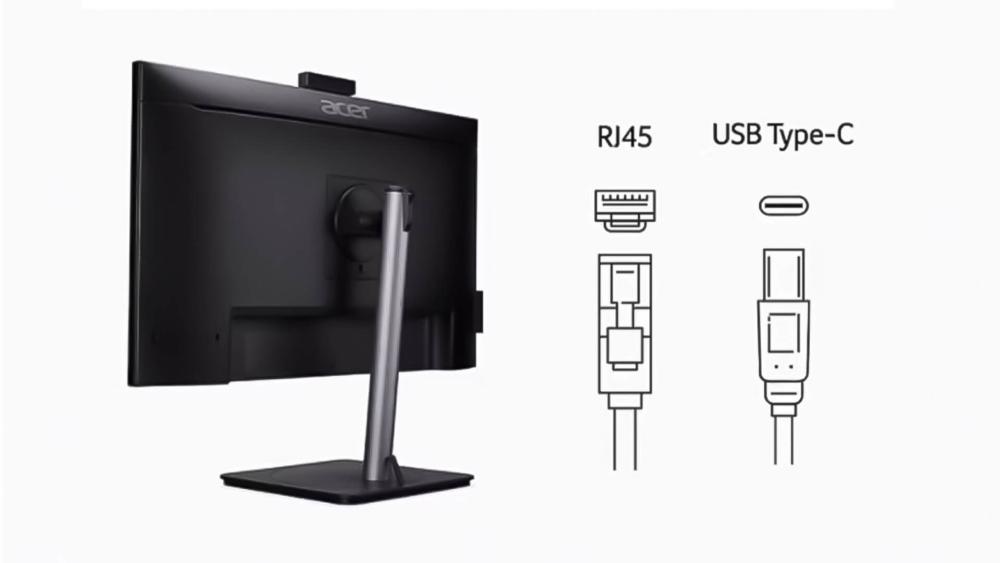
Before diving into technical settings or assuming the monitor has a fault, it’s best to start with the simplest display-side checks. Many Acer monitor issues such as flickering, random blackouts, or lines across the screen are triggered by incorrect settings or minor hardware connection problems. These steps help rule out the most common causes quickly.
1- Adjust Refresh Rate & Resolution in Display Settings
A refresh rate mismatch is one of the most common reasons for flickering or flashing black screens. This happens when your operating system or applications try to use a refresh rate your monitor or GPU cannot comfortably support. For example, selecting 144Hz on a PC or cable that only supports 60Hz can cause instability, flicker, or even a complete signal drop.
You can easily adjust this:
- Windows:
Settings → System → Display → Advanced Display → Choose Refresh Rate - macOS:
System Settings → Displays → Refresh Rate
Choosing the correct resolution is just as important. If your system forces a resolution that doesn’t match your monitor’s native panel; especially on ultrawide or high-refresh gaming models, you may see screen glitching, distortion, or text that appears blurry. Returning to the native resolution (e.g., 1080p, 1440p, or Dual QHD) typically resolves these problems immediately.
2- Switch HDMI/DisplayPort Cables
Cables are responsible for a surprisingly large portion of monitor flickering, signal drops, artifacts, and colourful lines. A worn, loose, or low-spec cable may fail to deliver stable bandwidth; particularly for high-refresh-rate gaming.
Common symptoms of cable issues include:
- Intermittent flicker or flashing
- Random black screens during gameplay
- Coloured lines or static across the display
- Short signal dropouts when moving or adjusting the monitor
If your cable is older, bent, or not rated for high bandwidth (e.g., using a basic HDMI cable for a 144Hz monitor), you may experience ongoing problems. The easiest fix is simply replacing the cable with a certified high-speed HDMI or DisplayPort option. You can explore reliable options through Cables & Accessories, ideal for 144Hz+, 165Hz, and 240Hz displays.
3- Toggle FreeSync/G-Sync if Applicable
VRR (Variable Refresh Rate) technologies such as FreeSync and G-Sync help reduce screen tearing and stuttering during fast-paced gaming by synchronising your frame rate with the monitor. However, certain combinations of hardware, drivers, and specific games can occasionally cause:
- Flickering during loading screens
- Black flashes during cutscenes
- Rapid brightness changes
- Momentary signal loss
You can test this quickly by turning VRR off to see if the flicker disappears. For many users, a simple toggle in the GPU control panel (NVIDIA Control Panel or AMD Adrenalin) instantly stabilises the display. If VRR is the cause, leaving it switched off or updating GPU drivers may permanently resolve the issue.
4- Try the Monitor with Another Device
This is one of the most reliable ways to determine whether the problem is your monitor or your PC.
Test the display with:
- A laptop
- A gaming console (PS5, Xbox, Switch)
- Another desktop PC
If the monitor still flickers, shows lines, or goes black when connected to another device, the issue is likely with the monitor itself or the cable. But if the monitor works perfectly on another device, the problem is almost certainly linked to your GPU, display drivers, or PC software settings.
This simple swap can save hours of troubleshooting and quickly reveals which side of your setup needs attention.
Driver and System Settings to Review

Even if your Acer monitor and cables are functioning correctly, problems can still occur due to software issues on your PC or GPU. Drivers act as the communication link between your graphics card and your display, so when they become outdated, corrupted, or unstable, they can cause symptoms that look like monitor failure. The same is true for certain background applications that interfere with how your display renders images. Reviewing these system-level settings is an essential part of resolving flickering, black screens, or lines on your Acer monitor.
1- Update or Roll Back GPU Drivers
Your graphics card drivers directly control how your monitor receives image data. When drivers are out of date or when a new driver update introduces bugs, you may experience:
- Random flashing or flickering
- Sudden black screens, especially during games
- Coloured or distorted lines across the display
- Incorrect refresh rate behaviour (e.g., monitor stuck at 60Hz)
- Frame drops or unexpected freezing
Sometimes a new driver update fixes these issues, while in other cases the update causes them. That’s why it’s equally important to try both updating and rolling back.
To update drivers:
- NVIDIA users can use GeForce Experience
- AMD users can use Adrenalin Software
- Intel graphics users can update through Intel Arc/Graphics Control Center
- Windows users can also update via Device Manager
To roll back drivers:
If the flicker started immediately after a driver update, rolling back to the previous version can fix the issue instantly.This is one of the most effective fixes for Acer monitor flicker, lines, and blackouts especially when the monitor works fine on other devices.
2- Disable Background Software Affecting Display (e.g., overlays)
Many modern applications run subtle overlays or visual enhancements in the background. These include things like screen recorders, performance monitors, hardware overclocking utilities, or game overlays from platforms like Steam or Discord. While these features are convenient, they can occasionally conflict with your display output.
These applications can cause:
- flicker when switching apps
- momentary black screens
- sudden changes in brightness
- stuttering or ghosting effects
Temporarily disabling overlays is a simple way to test whether they’re behind your display issue. If the flickering stops, you’ve immediately identified the cause.
3- Monitor Firmware or Acer Software Utility Checks
Some Acer monitors support firmware updates, which function similarly to BIOS updates for your PC. These updates can improve refresh rate stability, correct VRR behaviour, fix colour profile errors, or solve compatibility issues with newer graphics cards. If your model supports firmware updates, Acer provides them through official utilities or the support section of their website.
Even if your monitor doesn’t require firmware updates, using the Acer Display Widget or similar Acer utilities can provide an easy way to adjust display settings, reset profiles, or change performance modes. Resetting certain features through these tools can eliminate flickering or unexpected brightness changes caused by incorrect or outdated settings.
Hardware or Panel-Related Troubles
If software and settings are not the cause, the issue may be related to your monitor hardware or physical setup.
Screen Burn-in, Dead Pixels, or Flickering Backlight
OLED and LCD monitors can experience burn-in, pixel failures, or inconsistent backlight performance. Dead pixels may appear as stuck dots, while backlight flicker often shows as brightness pulsing.
External Interference (Power Strips, EM Fields)
Nearby electronics, cheap extension leads, or overloaded power strips can introduce voltage instability. This can cause dimming, flickering, or intermittent black screens.
Voltage Instability or Faulty Internal Components
If your monitor receives unstable voltage, either from a failing outlet or internal circuitry, flickering and blackouts are likely. A simple test is trying another power socket or using a surge-protected extension.
When to Consider Replacements or Repairs?
If your Acer monitor continues to flicker, display lines, or go black even after you’ve tried all cable checks, refresh rate adjustments, driver updates, and device tests, the issue is likely related to deeper hardware faults such as panel failure, backlight instability, or internal component wear.
At this stage, it’s worth considering a replacement; especially if the monitor is several years old or showing signs of consistent deterioration. Exploring reliable upgrade options at Box.co.uk, such as the latest Acer displays built for gaming, work or everyday use, can provide a more stable and modern experience, with improved panel technology, better refresh rate support and stronger long-term performance.
If your monitor is still under warranty, contacting Acer support is also a smart step, as they can diagnose potential faults through photos or videos and advise whether a repair or replacement is appropriate.
Final Thoughts
Most Acer monitor issues whether flickering, random black screens or lines across the display can usually be resolved with simple steps such as adjusting refresh rates, replacing worn cables, updating graphics drivers, or disabling conflicting software. These fixes address the majority of everyday problems caused by normal wear and tear. However, if your display continues to behave unpredictably even after following this full troubleshooting guide, the underlying cause may be hardware-related, such as panel degradation, backlight issues, or internal component failure. In these cases, upgrading to a newer, more reliable model is often the easiest long-term solution.
If you’re considering an upgrade, you can explore a wide range of dependable options at Box.co.uk, where you can Shop Acer Monitors for every use; gaming, work or design, discover top monitors for home and office setups, and even browse Monitor Accessories and Cables & Accessories to keep your display running smoothly. With the right setup, you can enjoy a stable, flicker-free experience that supports your gaming, work, and everyday needs.
Frequently Asked Questions
Why does my Acer monitor keep flickering and going black?
This is commonly caused by unstable cables, incorrect refresh rates, GPU driver issues, or VRR conflicts. Hardware problems are possible but less common.
Can the GPU cause my screen to flash randomly?
Yes. Overheating, high load, outdated drivers, or unstable overclocks can all lead to random flashes or black screens.
Is it bad if I see coloured lines on my monitor?
Coloured lines often indicate cable or GPU faults. Solid lines may suggest panel damage.
Can screen flickering be a sign of hardware failure?
Sometimes. If the flicker persists after trying new cables, devices and driver fixes, the panel or backlight may be failing.
You can pay with:
*PayPal Credit Representative Example: Assumed credit limit £1,200, Representative 23.9% APR (variable). Purchase rate 23.9% p.a (variable).Terms & Conditions apply.


PayPal Credit and PayPal Pay in 3 are trading names of PayPal UK Ltd, 5 Fleet Place, London, United Kingdom, EC4M 7RD. Terms and conditions apply. Credit subject to status, UK residents only, Five Tech LTD acts as a broker and offers finance from a restricted range of finance providers. PayPal Pay in 3 is not regulated by the Financial Conduct Authority. Pay in 3 eligibility is subject to status and approval. 18+. UK residents only. Pay in 3 is a form of credit. Check if affordable and how you will repay. May make other borrowing more difficult or expensive. See product terms for more details.
Copyright © 1996-2026 Fivetech LTD | Terms and Conditions
box.co.uk & Box are trading names of Five Tech Limited. Registered office: Box LTD, Unit 10 Woodford Trading Estate, Woodford Green IG8 8HF