


 Menu
MenuMenu


Get Sales Advice from Mon - Fri 9am - 5:00pm:
020 3337 8950LAST UPDATED: November 20, 2025
Acer Extensa Not Charging? How to Diagnose Battery & Power Issues Fast
Acer Extensa laptops are appreciated for their specs, dependable performance and straightforward design, making them ideal for everyday work and study. Even so, occasional Acer Extensa battery problems can appear, including the laptop not charging, draining quickly or showing unusual battery behaviour. Most of these issues are easy to diagnose, and many can be resolved at home with a few simple checks.
This guide walks you through the most common causes, practical fixes and helpful tips to keep your Extensa running smoothly and your battery performing reliably.
Acer Extensa Not Charging at All — Practical Fixes to Try First
When your Extensa refuses to charge, the issue is often simple. Before assuming a fault with the hardware, try the following straightforward checks. They’re quick, safe, and often enough to get things working again, especially when you’re dealing with Acer Extensa battery problems.
Start With the Simple Checks (Charger & Power Source)
The most common charging interruptions come from the charger or the socket rather than the laptop itself.
- Make sure the charger is firmly connected at both ends.
- Try plugging it into a different wall socket to rule out a loose or inactive outlet.
- Inspect the charger cable and adapter for signs of wear, bends or heat marks.
- If you have access to a compatible spare charger, testing with a second one can quickly confirm if your Acer Extensa’s charger is working or not.
If you are confused about whether your laptop battery or charger is the problem, the above steps will make it clear.
Inspect the Charging Port & Indicator Light
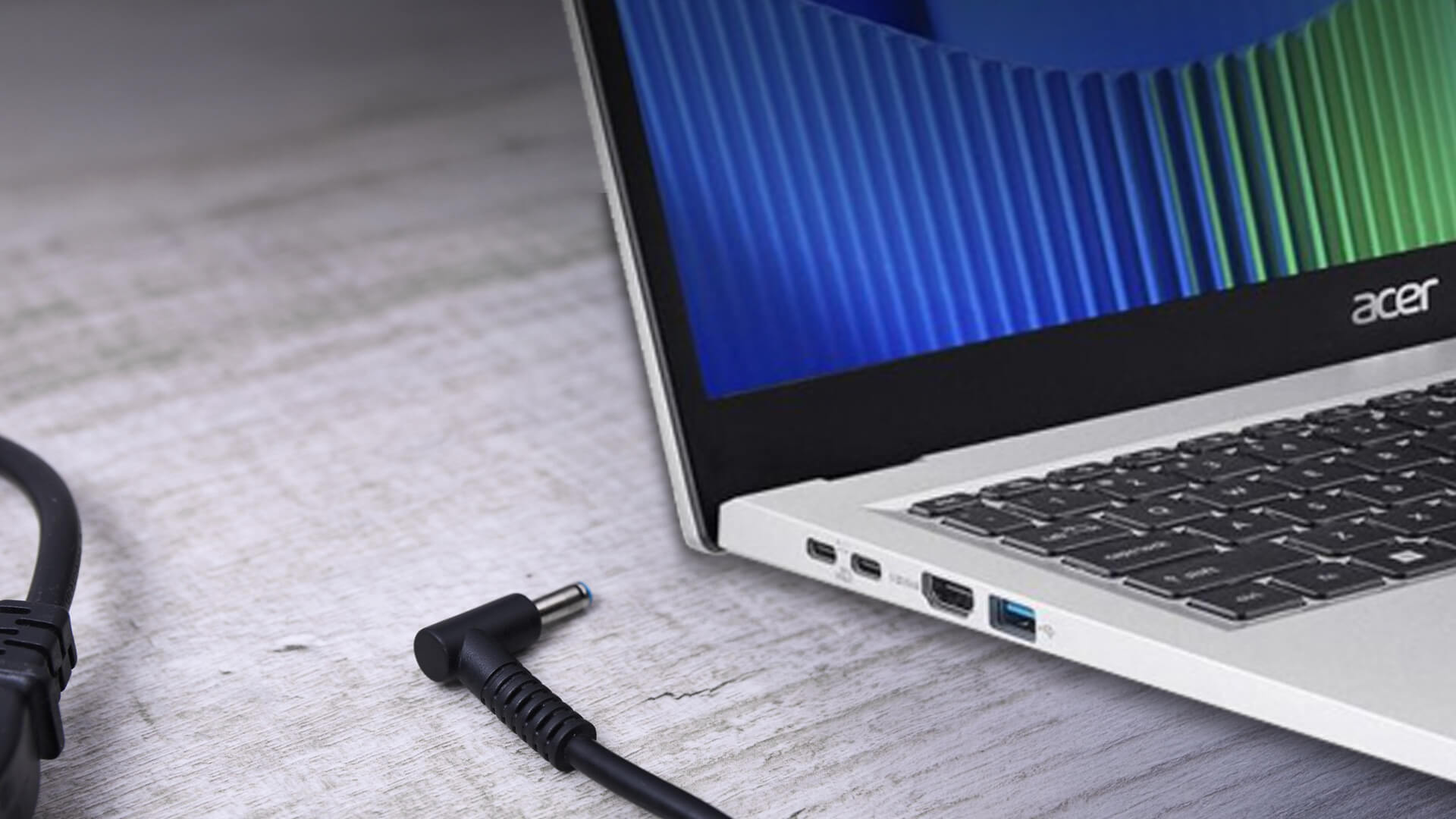
A loose or obstructed charging port can stop power from reaching the battery.
- Check the port for dust, debris or movement when the charger is plugged in.
- A gentle clean with a soft brush often improves the connection.
- Pay attention to the charging LED. No light, a flashing light or unusual colours can indicate a port issue or a charging interruption.
Try a Full Power Reset
A power reset helps clear temporary glitches and solve numerous Acer Extensa battery problems that prevent charging.
- Turn off the laptop completely.
- Disconnect the charger.
- Hold the power button for about 10–15 seconds to discharge residual power.
- Reconnect the charger and turn the laptop back on.
It’s a simple step, but surprisingly effective for situations where the laptop is plugged in but not responding.
Review Charging Settings in Windows
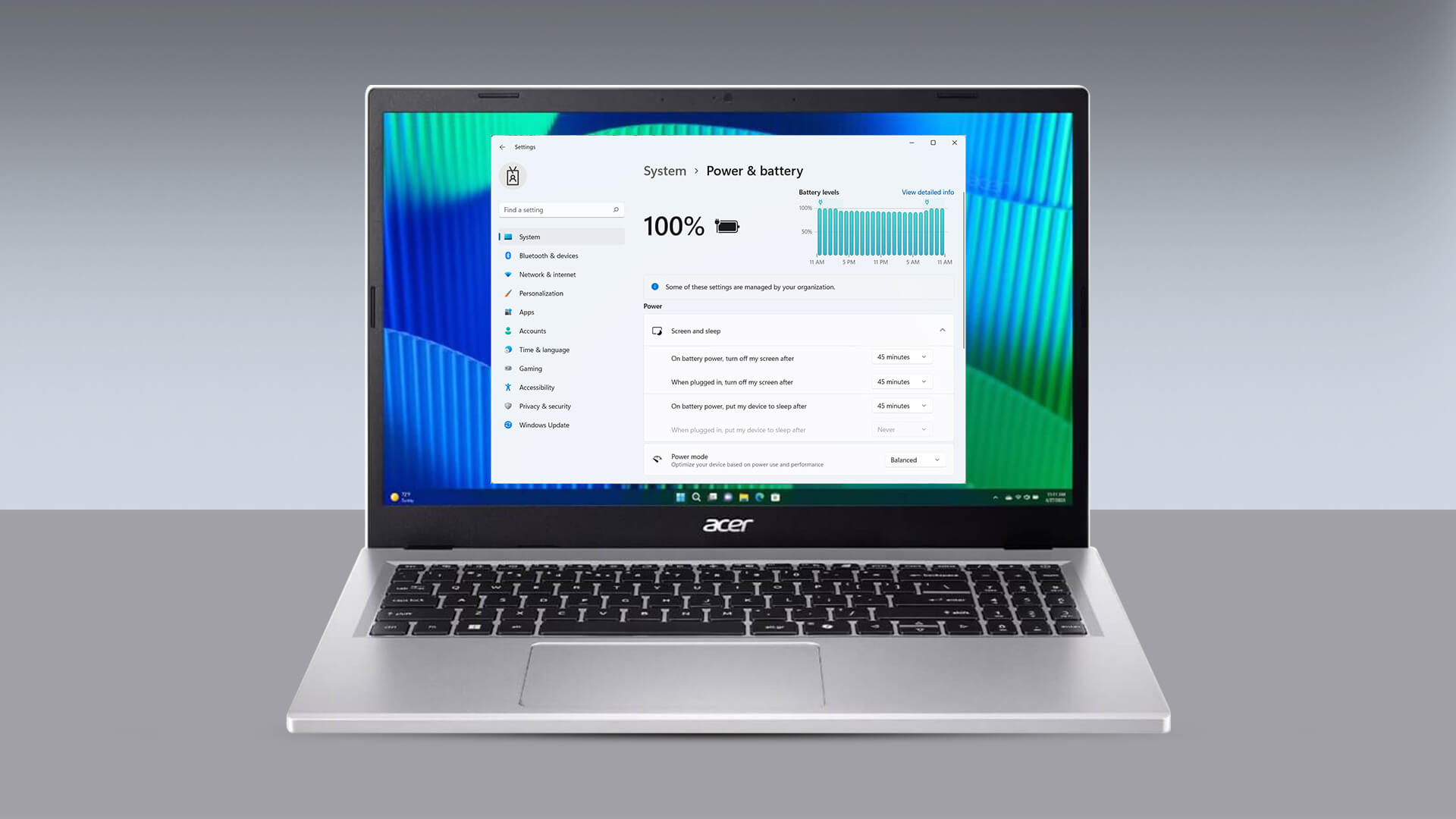
Certain Windows settings can limit charging or pause it altogether.
- Some Acer models support battery-limit features that stop charging around 80% to preserve battery life.
- Battery saver modes or manufacturer utilities may also influence charging behaviour.
Reviewing these settings ensures the laptop isn’t stopping the charge intentionally, which is particularly useful when diagnosing Acer Extensa battery problems.
Acer Extensa Battery Draining Too Fast? Causes & Fixes
Even when everything seems fine with the charger, your Extensa may still lose power faster than usual. Many Acer Extensa battery problems come down to how the battery is ageing, how the laptop is used or how Windows manages power in the background. Understanding these patterns makes it easier to spot the real cause.
Check Whether the Battery Is Wearing Out
- A worn battery is one of the most common reasons a laptop battery stops charging properly or drains far more quickly than expected.
- You can run an Acer Extensa battery health check using Windows’ built-in reporting tools to see how much capacity the battery has lost over time.
- If the laptop battery stopped charging mid-use, shows sudden drops, or shuts down at higher percentages, these are signs of battery wear rather than a charger fault.
Look at the Apps & Processes Using Excessive Power
- High-drain apps, especially browsers with many open tabs, video calls or background syncingtools, can cause fast battery loss.
- Reviewing the Windows battery usage chart helps identify which apps use the most power and which startup items you can safely disable, while incorporating battery-saving strategies can help your device run longer between charges
Adjust Simple Power Settings for Longer Battery Life
Some small changes make a noticeable difference while fixing Acer Extensa battery problems:
- Lowering screen brightness
- Using a balanced or battery-friendly mode
- Allowing the device to sleep sooner when inactive
These adjustments also help resolve situations where a laptop battery stops charging after extended periods of high load.
Consider the Impact of Heat on Your Battery
Heat is one of the biggest contributors to a quick Acer Extensa battery drain. Blocked vents, dust build-up or using the laptop on soft surfaces can trap heat and cause the battery to empty faster. Keeping the device well-ventilated and cleaning it occasionally helps maintain healthier long-term battery performance.
Some Technical Fixes for Acer Extensa Battery Not Charging or Draining Too Fast
If you’ve already worked through the earlier checks and are still experiencing Acer Extensa battery problems, these deeper diagnostics can help you understand what’s happening behind the scenes.
Generate a Windows Battery Report
The Windows Battery Report provides a detailed look at the battery’s overall health and long-term patterns. To generate the report, open Command Prompt as admin and run powercfg /batteryreport. It can reveal:
- Wear levels compared to the original capacity
- Recent charging cycles and discharge behaviour
- Irregularities that typical checks may not highlight
- Signs of uneven cell ageing or sudden drops
This report helps confirm whether the issue relates to software interpretation or the battery’s physical condition.
Consider a BIOS Update (When Appropriate)
A BIOS update can help if the issue stems from how the system interprets the battery’s status. It is useful for:
- Correcting inaccurate power reporting
- Improving internal charging behaviour
- Resolving compatibility issues with replacement batteries
It should only be installed when necessary and always with a stable power connection.
Test the Charger for Consistent Output
If you want certainty about the charger, a voltage check using a basic multimeter can be helpful. This allows you to:
- Confirm whether the charger is outputting the correct voltage
- Identify any fluctuations or weak power output. If your area has voltage issues, using a UPS for backup power is recommended
- Distinguish between a failing charger and a laptop-side issue
This can be especially useful to rule out the possibility of an Acer Extensa laptop charger not working and determine if something is wrong with your device.
What Slow Charging Really Means on an Acer Extensa
Slow charging isn’t always a sign of a fault, but changes in charging behaviour can reveal useful clues. Noting whether the laptop charges normally when switched off or whether it remains slow from start to finish can help identify whether the charger is supplying enough power or if the system is adjusting the charge rate for battery protection. Observing these patterns can be particularly helpful when troubleshooting Acer Extensa battery problems.
If charging speed has recently changed, that shift can be more informative than the speed itself. For example, a charging that drops out briefly when the cable moves may suggest wear in the port, while slow charging across all battery levels could indicate declining charger output or a voltage irregularity.
Battery Percentage Stuck, Inaccurate, or Not Updating on Acer Extensa Laptops
An inaccurate or frozen battery percentage can be confusing, especially if the laptop appears to charge normally. This usually points to software rather than hardware. Observing these issues can be useful when diagnosing Acer Extensa battery problems.
If the percentage remains unchanged, Windows may not be refreshing the battery status correctly. This may lead to your Acer Extensa laptop not turning on, even though the battery still has power. A driver reset in Device Manager often resolves this quickly.
Battery calibration is another helpful step. Allowing the battery to drain naturally and then charging it continuously to full helps the system regain a sense of the battery’s true capacity. This can resolve unexpected percentage jumps or laptop blank screen moments that happen when the system misreads the remaining charge.
When Should You Go for Battery Replacement or Professional Repair?
After years of regular use, laptop batteries naturally begin to lose capacity, and eventually the charge simply doesn’t last as long as it once did. If your Extensa powers off shortly after being unplugged, drops several percentage points at a time or struggles to maintain a stable charge even after calibration, these are good indicators that the battery is reaching the end of its lifespan. If your laptop’s battery stopped charging even after using a working charger, it’s often a sign that the internal cells are no longer holding power as they should.
Such Acer Extensa battery problems mean that the issue lies elsewhere. A charging port that disconnects with light movement, or an occasional laptop plugged in but no charging behaviour, may point to a loose connector or wear inside the power circuit. These faults aren’t typically fixable at home and benefit from a technician’s assessment, especially if you notice unusual warmth, small electrical noises or if the charger only works at a certain angle.
If your device is old, it is always a good idea to go for a replacement. Modern business laptops offer stronger power management, better long-term stability and features designed for everyday professional use. For learners and light productivity tasks, many student laptops provide reliable battery performance without the added complexity of high-end hardware. Acer Chromebooks, in particular, are known for their excellent battery life, making them a great choice for students and casual users who need long-lasting performance throughout the day.

Conclusion
Most Acer Extensa battery problems can be resolved with a few practical checks. Whether the issue relates to the charger, software settings, or natural battery ageing, understanding the early signs is always helpful. Keeping the device well-ventilated and reviewing power settings regularly can make a noticeable difference to long-term performance. If you are looking for reliable long-term battery behaviour, Windows 11 laptops with battery optimisation offer power-management features that generally provide better consistency.
Frequently Asked Questions
Why does my Acer Extensa charger light keep blinking, but it won’t charge?
A blinking light usually means the laptop is detecting unstable power or a weak connection at the charging port. It may also occur if the system is stopping the charge due to an interruption or a protective response to inconsistent voltage.
Can I replace the battery myself on an Acer Extensa laptop?
Many Extensa models allow user-replaceable batteries, while slimmer designs may need a technician. If the battery no longer holds a charge or shuts down shortly after unplugging, replacing it is often a straightforward and effective fix.
How long should the battery last on an Acer Extensa during normal work?
A healthy Extensa battery should comfortably last through everyday tasks like browsing, writing and light office work. If the runtime has noticeably decreased, it may indicate battery wear or background processes using more power than expected.
Is it safe to use a third-party charger for my Acer Extensa?
It can be safe as long as the charger matches the correct voltage and wattage. However, low-quality third-party units may cause inconsistent charging or prevent the battery from charging properly, so quality and compatibility matter.
Will updating Windows or BIOS help if my Acer Extensa battery drains quickly?
Sometimes, yes. Updates can include improvements to power management, battery calibration and charging stability. If the drain is caused by software misreporting or outdated firmware, updating can help restore more accurate behaviour.
You can pay with:
*PayPal Credit Representative Example: Assumed credit limit £1,200, Representative 23.9% APR (variable). Purchase rate 23.9% p.a (variable).Terms & Conditions apply.


PayPal Credit and PayPal Pay in 3 are trading names of PayPal UK Ltd, 5 Fleet Place, London, United Kingdom, EC4M 7RD. Terms and conditions apply. Credit subject to status, UK residents only, Five Tech LTD acts as a broker and offers finance from a restricted range of finance providers. PayPal Pay in 3 is not regulated by the Financial Conduct Authority. Pay in 3 eligibility is subject to status and approval. 18+. UK residents only. Pay in 3 is a form of credit. Check if affordable and how you will repay. May make other borrowing more difficult or expensive. See product terms for more details.
Copyright © 1996-2026 Fivetech LTD | Terms and Conditions
box.co.uk & Box are trading names of Five Tech Limited. Registered office: Box LTD, Unit 10 Woodford Trading Estate, Woodford Green IG8 8HF